
HRM & Payroll Management System — Web App User Guide
This guide walks through the main areas of the WorkZen web application:
dashboards, employee and org setup, attendance, payroll, communications, and settings.
Screenshots match the current UI under assets/image/web/.
Quick Access to Areas
Dashboard
The dashboard summarizes attendance, workforce metrics, and shortcuts into daily HR operations.
What you see
- Key metrics: Headcount, attendance trends, and alerts at a glance.
- Navigation: Entry point to employees, payroll, and configuration modules from the main layout.
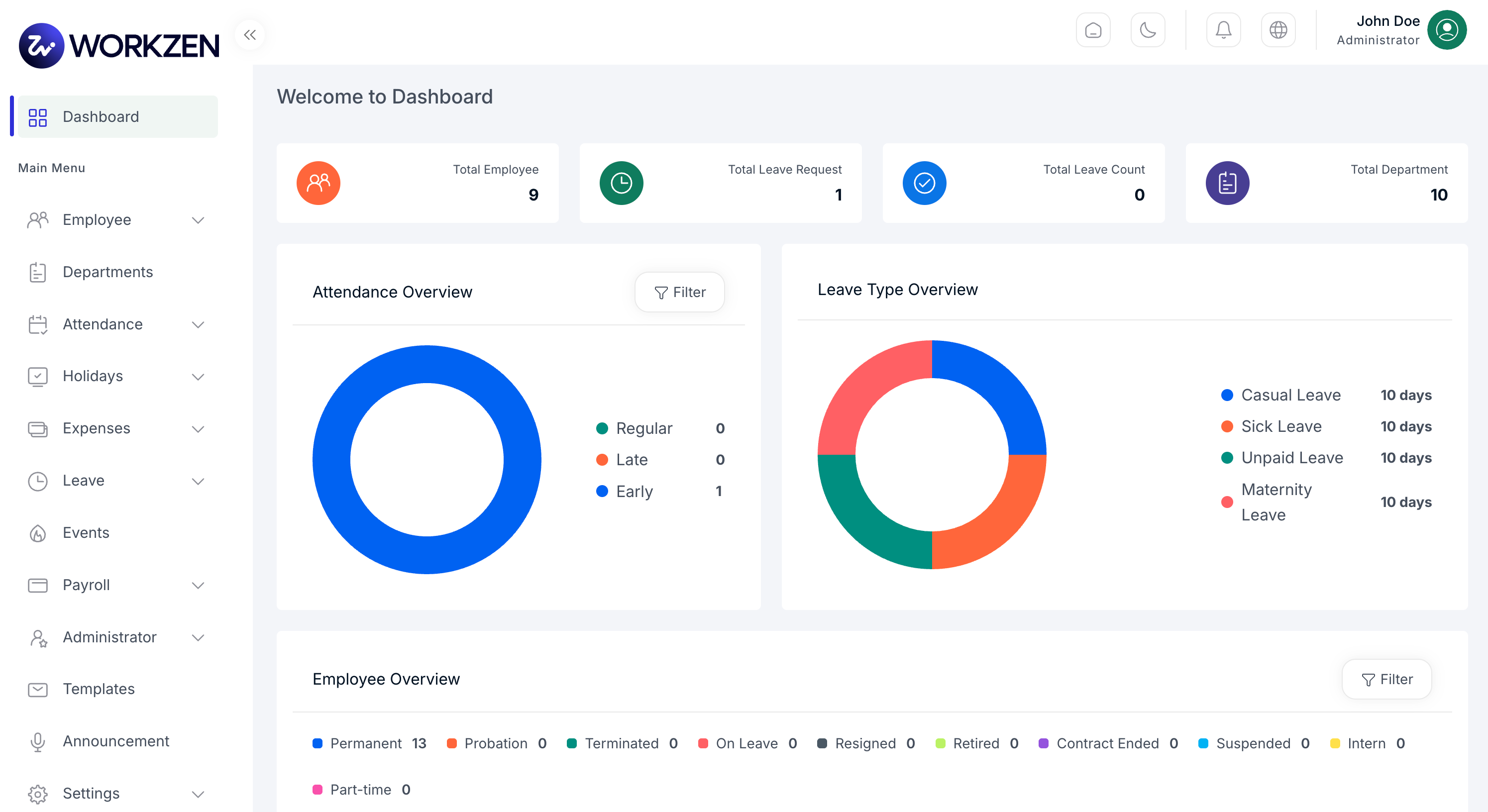
Main dashboard with workforce and attendance highlights.
Employees
Maintain your employee directory, employment statuses, and per-employee settings from the web admin.
Employee list & create
- Directory: Browse and search employees with roles and departments.
- Add employee: Capture profile, org assignment, and employment details in one flow.
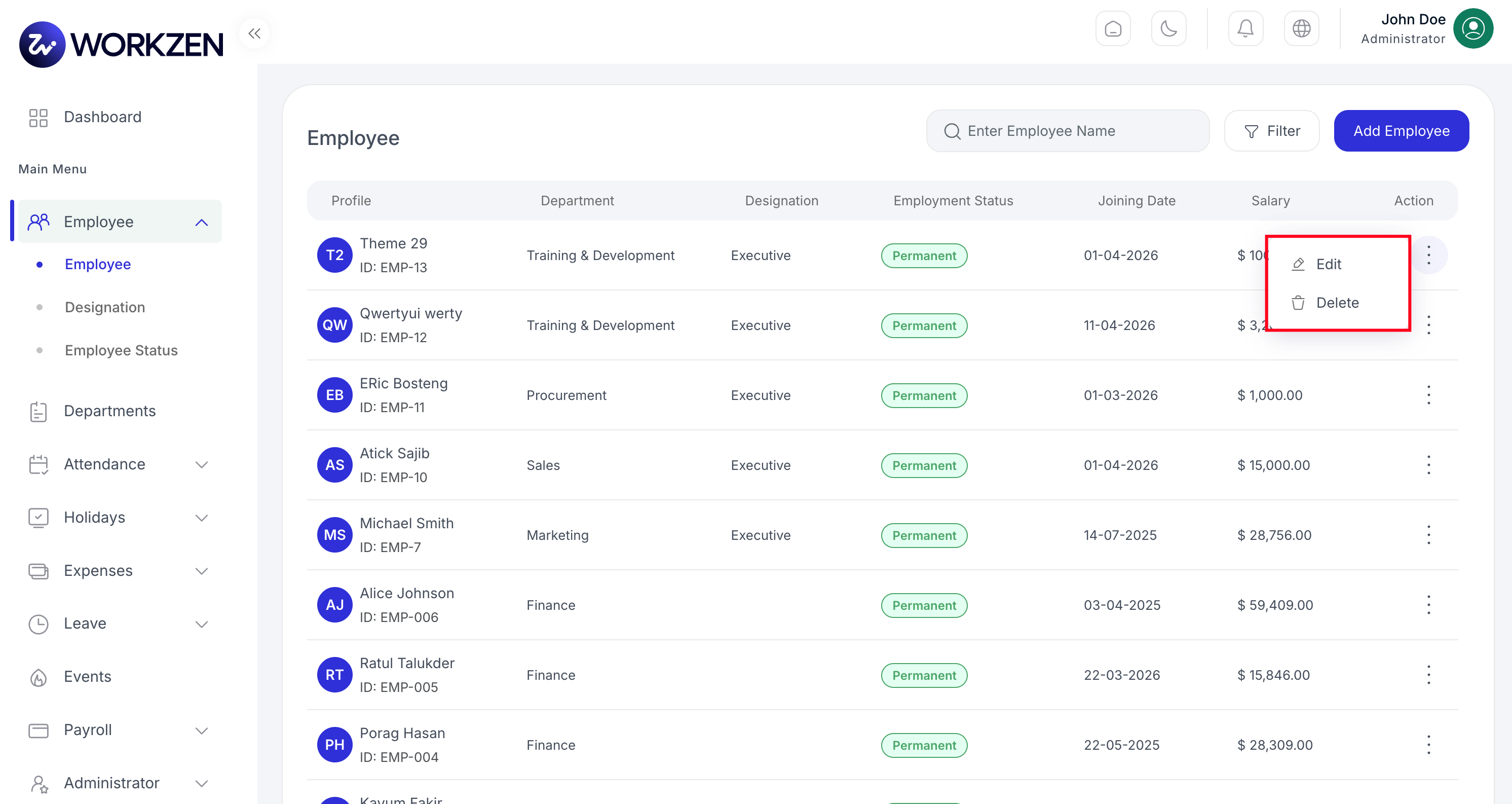
Employee list with search and key columns.
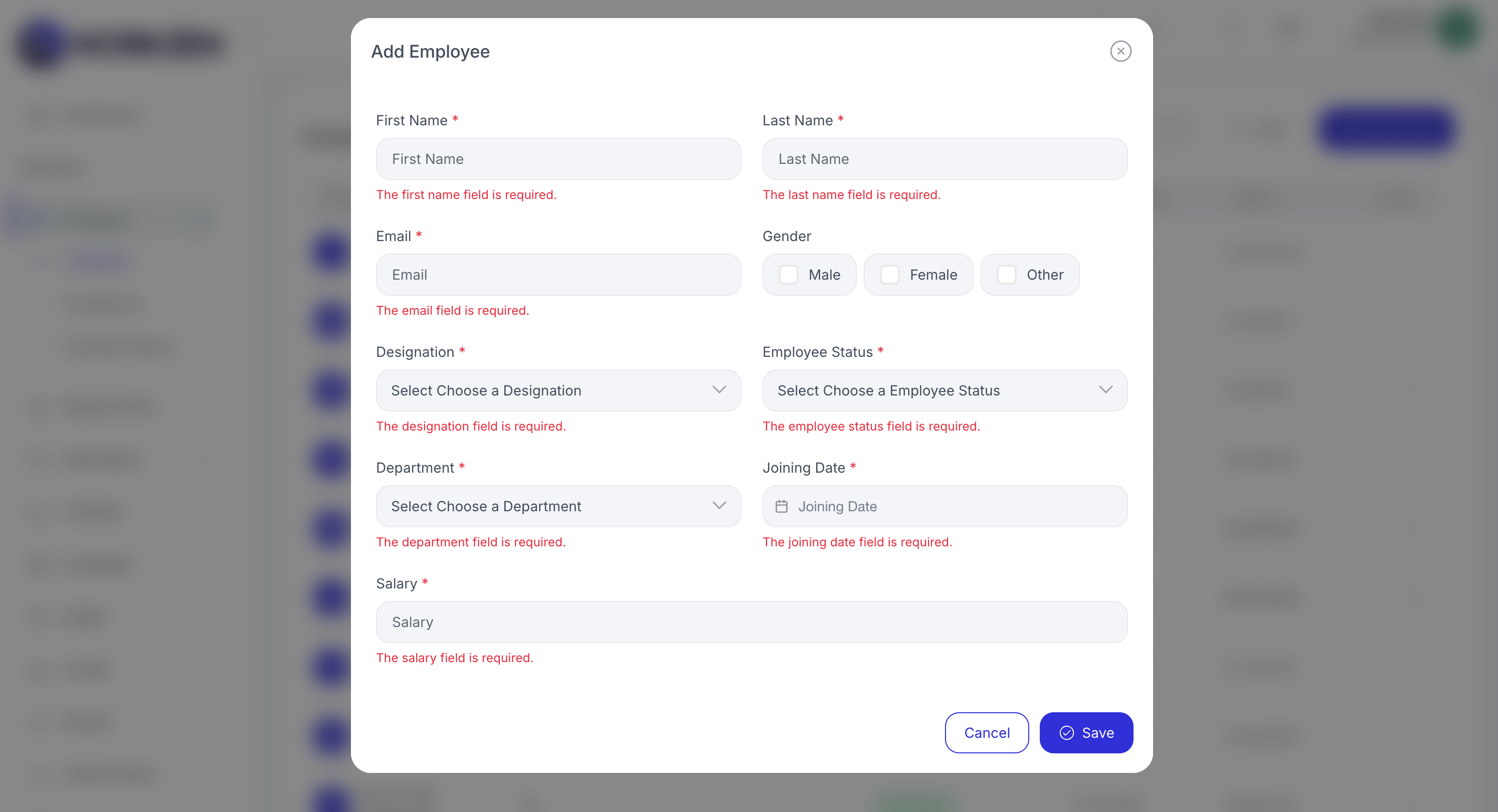
Add employee — profile and assignment fields.
Employee settings
Configure options that apply to employee records and related workflows (defaults vary by your deployment).
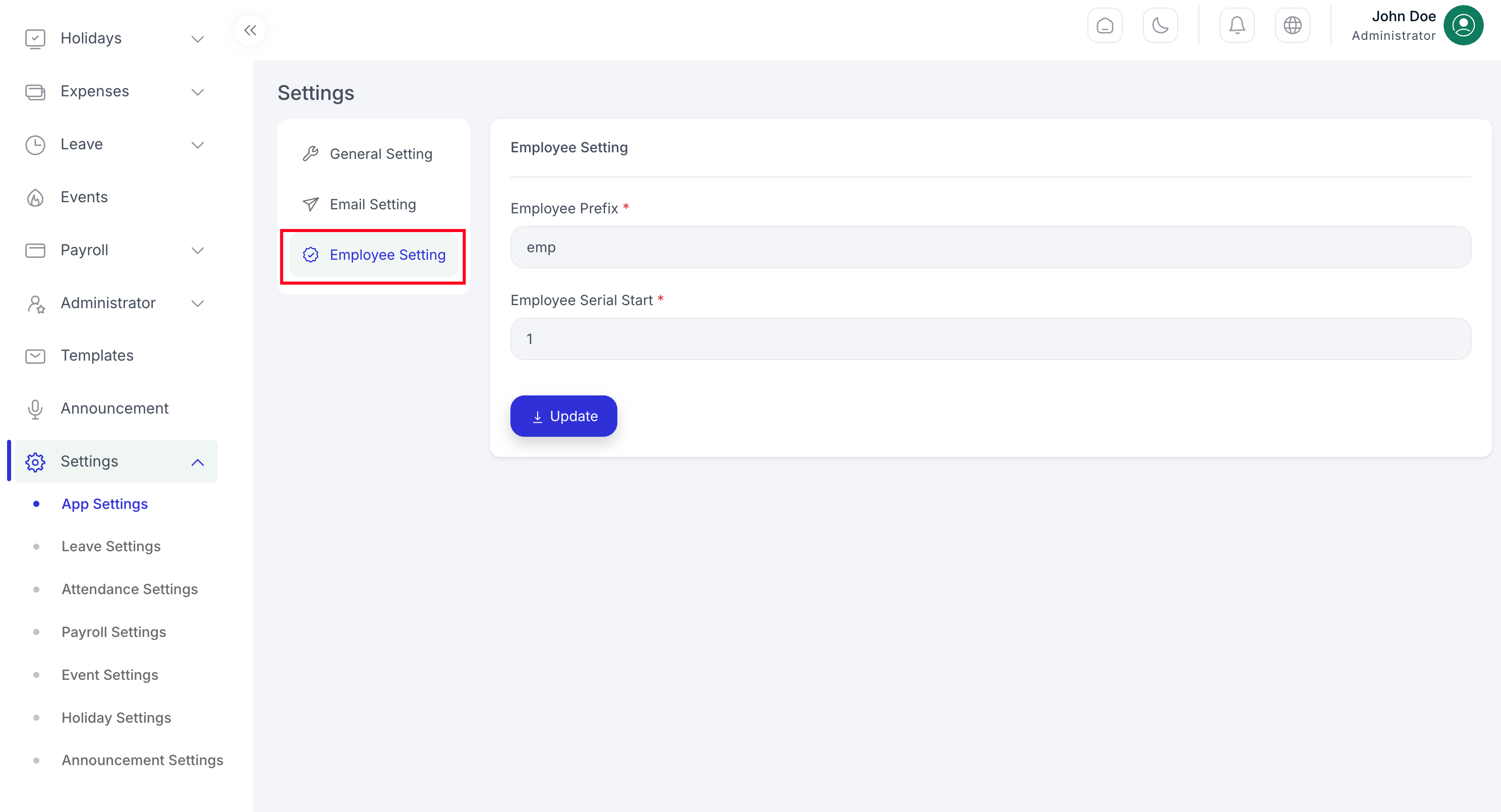
Employee-related configuration screen.
Employment status
Define statuses (for example permanent, probation, intern) and use them when assigning employees.
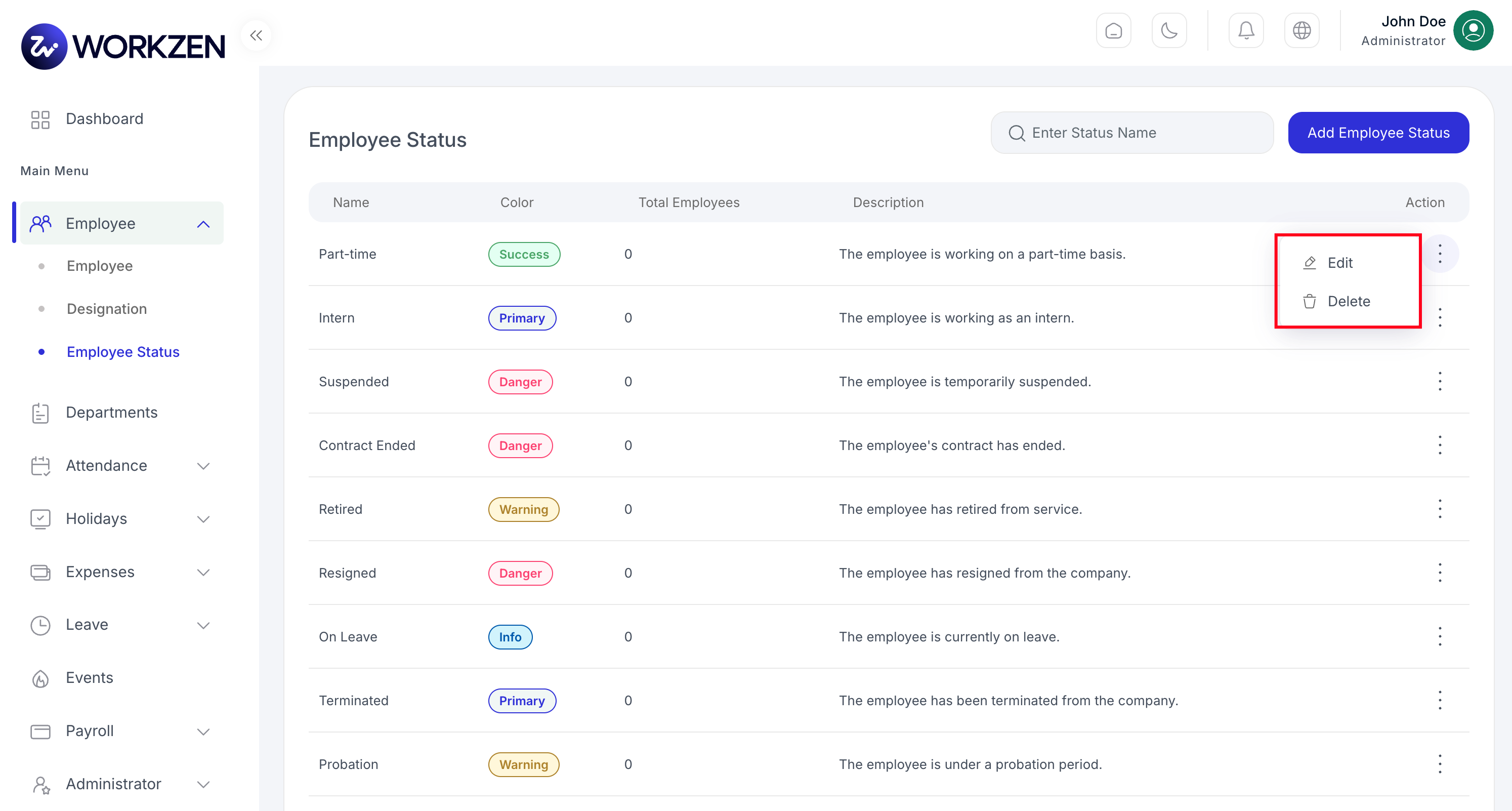
List of employment statuses.
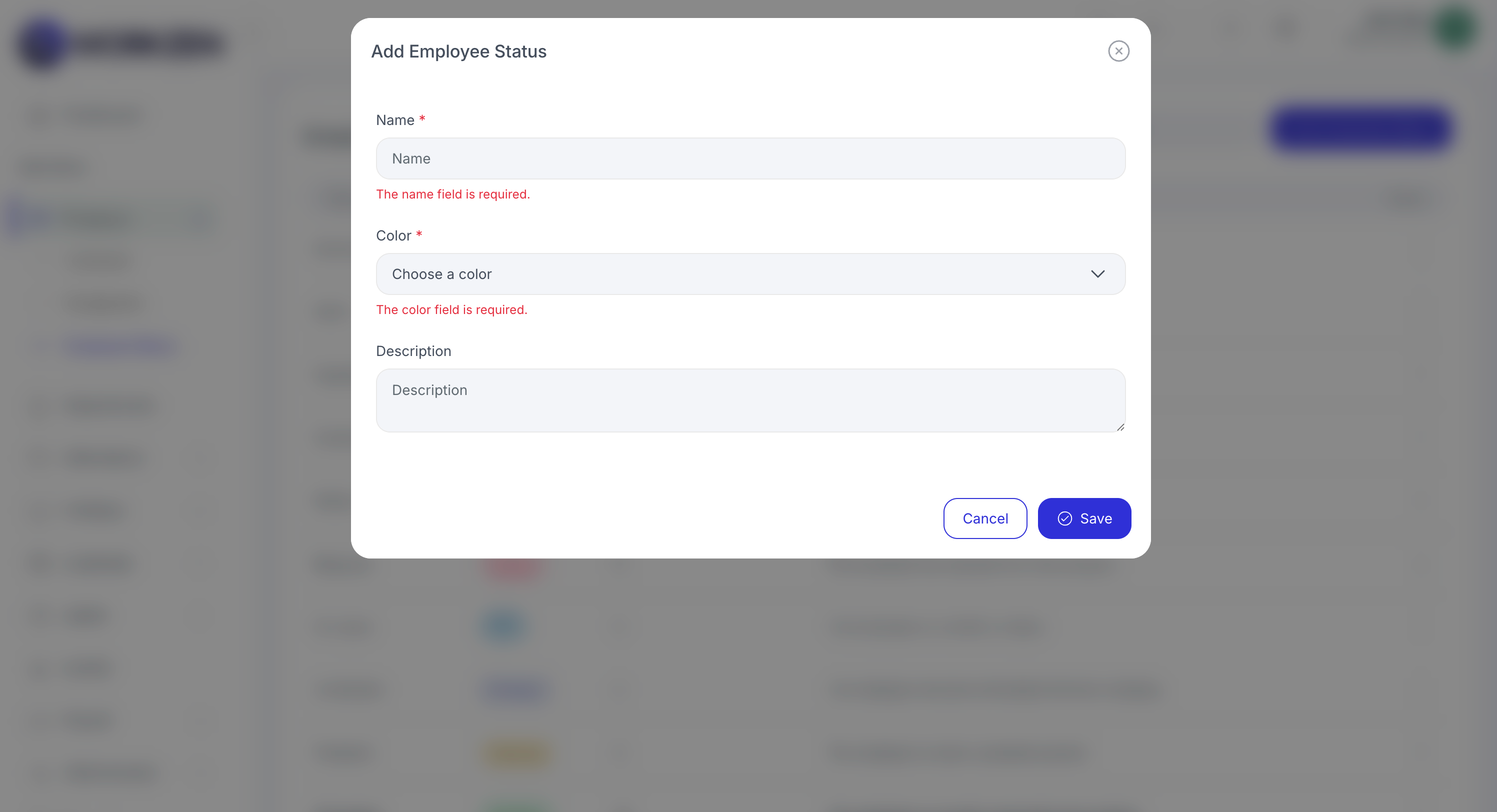
Create or edit an employment status.
Organization
Structure your company with departments and job designations used across employees and reporting.
Departments
- List: View department names, heads, and membership.
- Add: Create a department and link leadership or contact details as required.
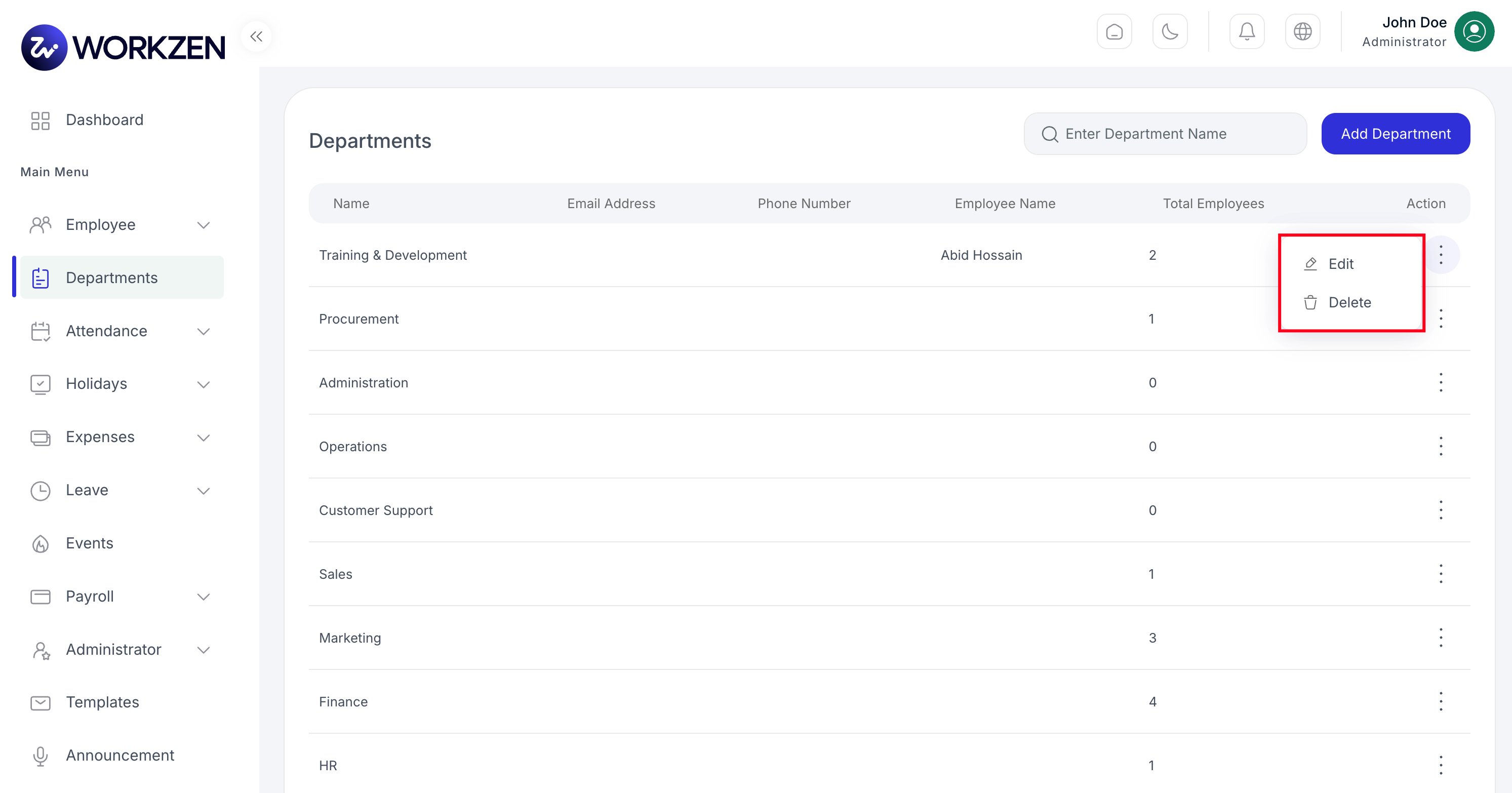
Department directory.
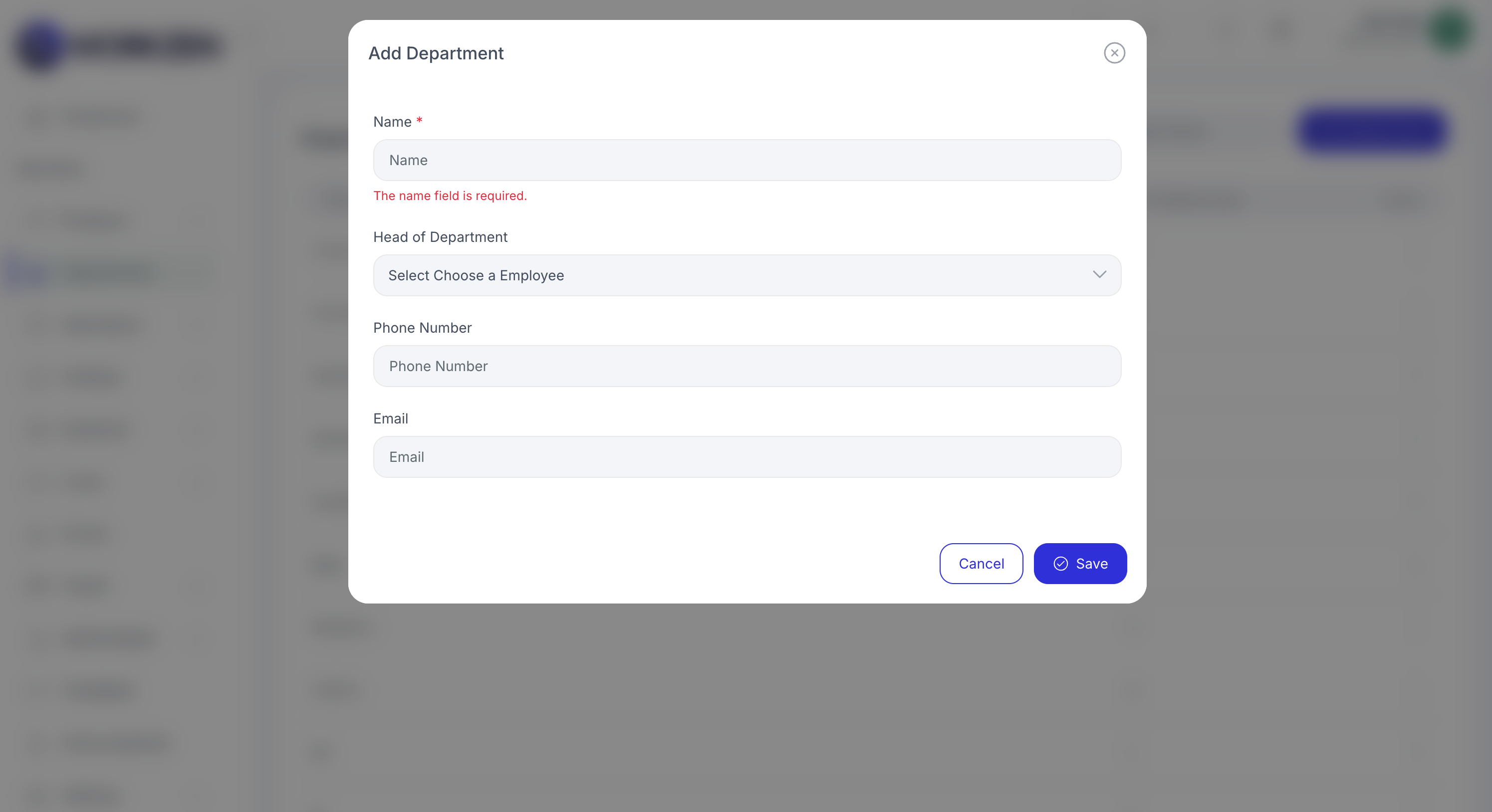
Add or edit a department.
Designations
Manage job titles so employees and approvals stay consistent.
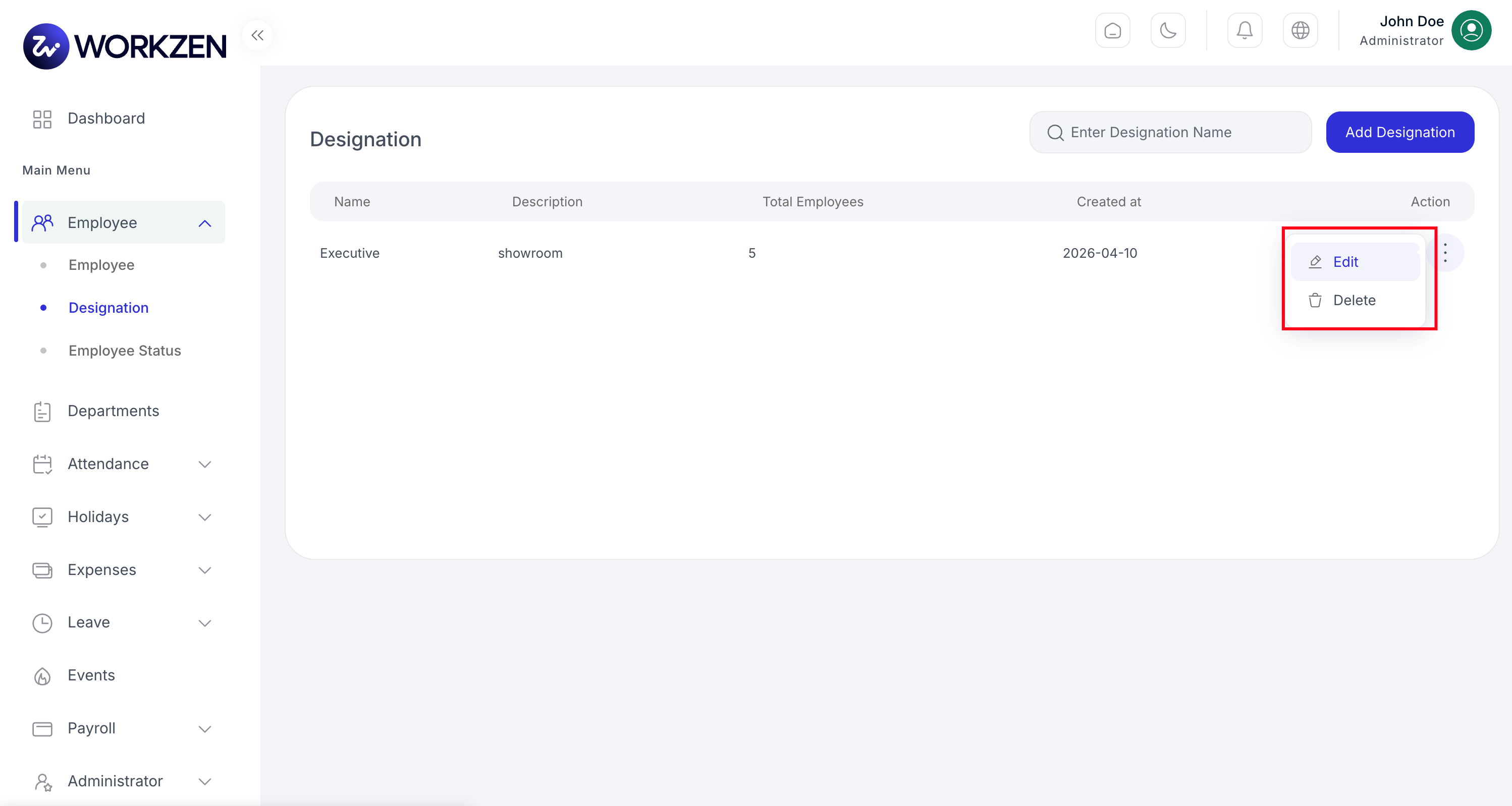
Designation list.
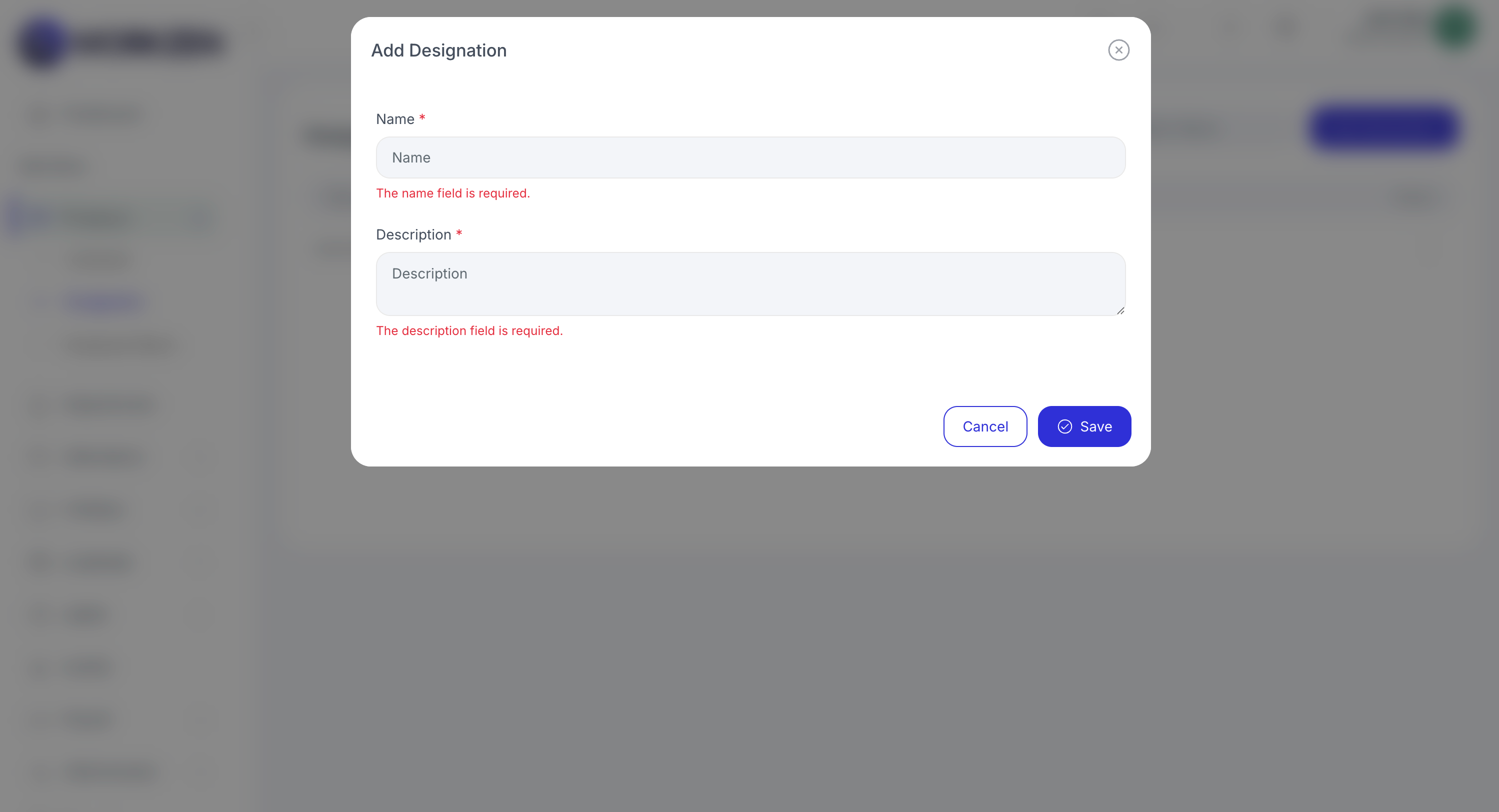
Add or edit a designation.
Users & Roles
Control who can sign in to the web app, invite teammates, and align permissions with roles.
Users
- User list: See accounts, roles, and activity at a glance.
- Invite: Send invitations and assign an initial role.
- Manage user: Update profile linkage, role, or access as your process requires.
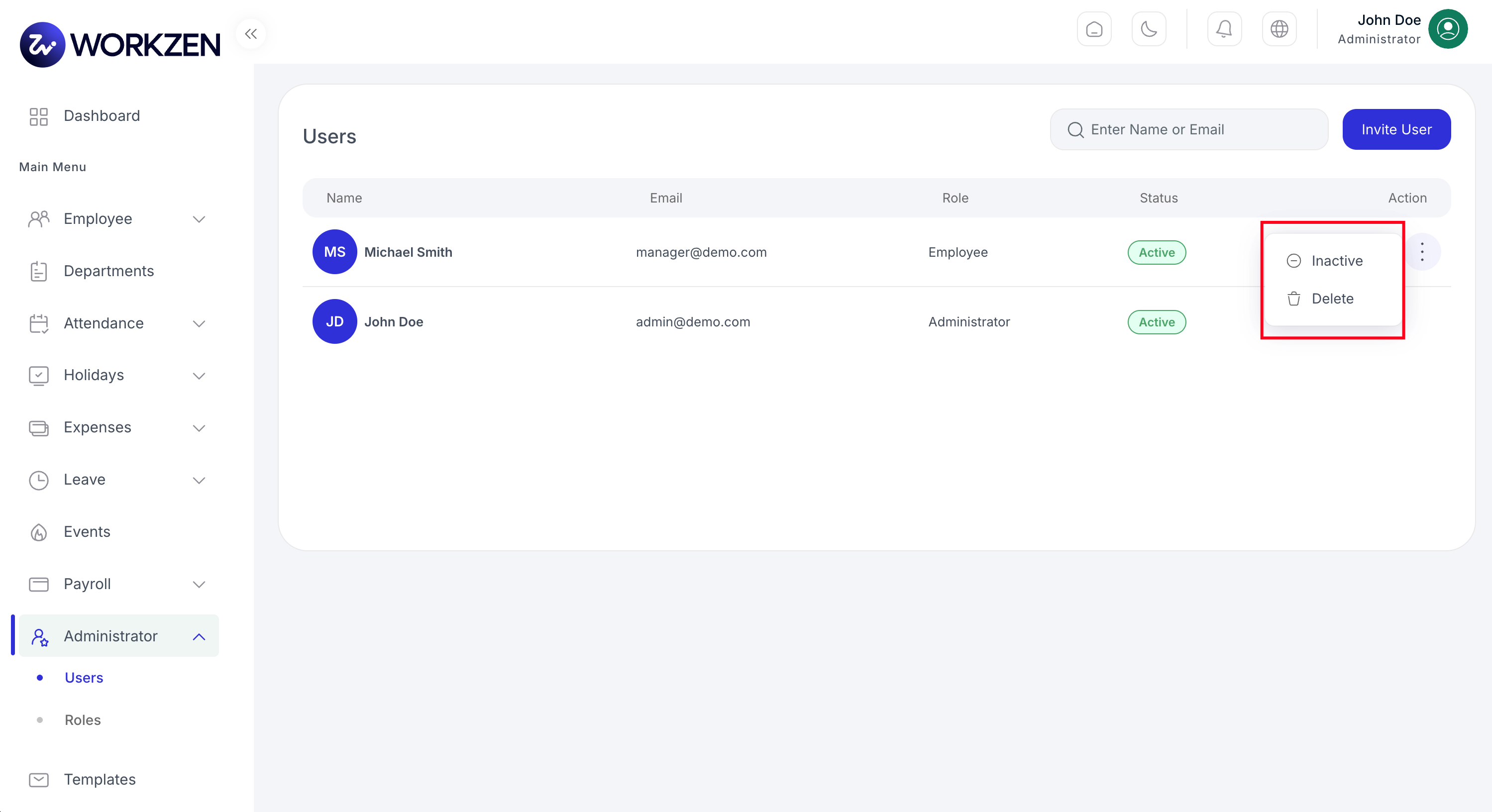
System users and roles.
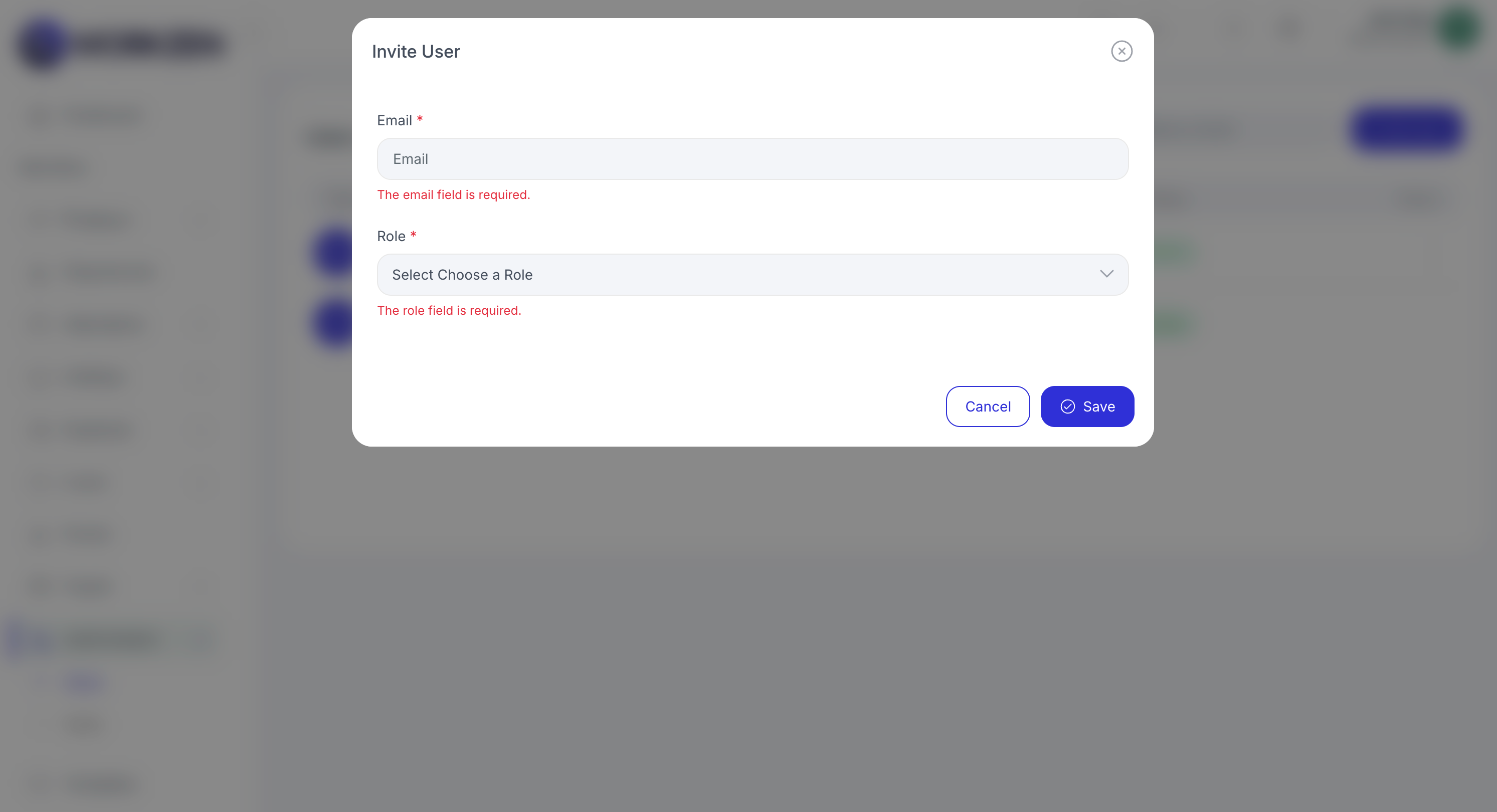
Invite a user by email and assign access.
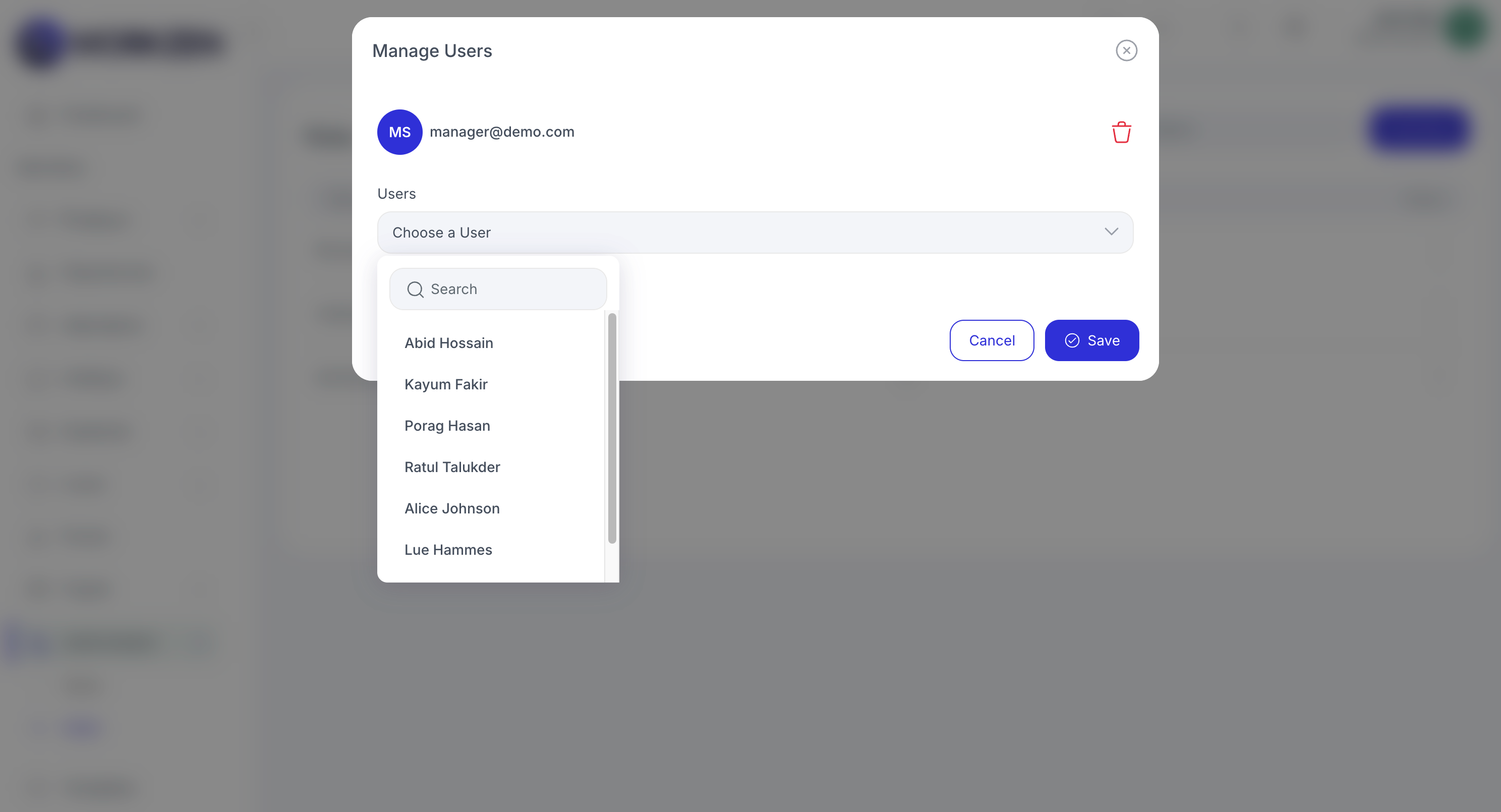
Manage an existing user account.
Roles
Create roles that bundle permissions for administrators, managers, and staff.
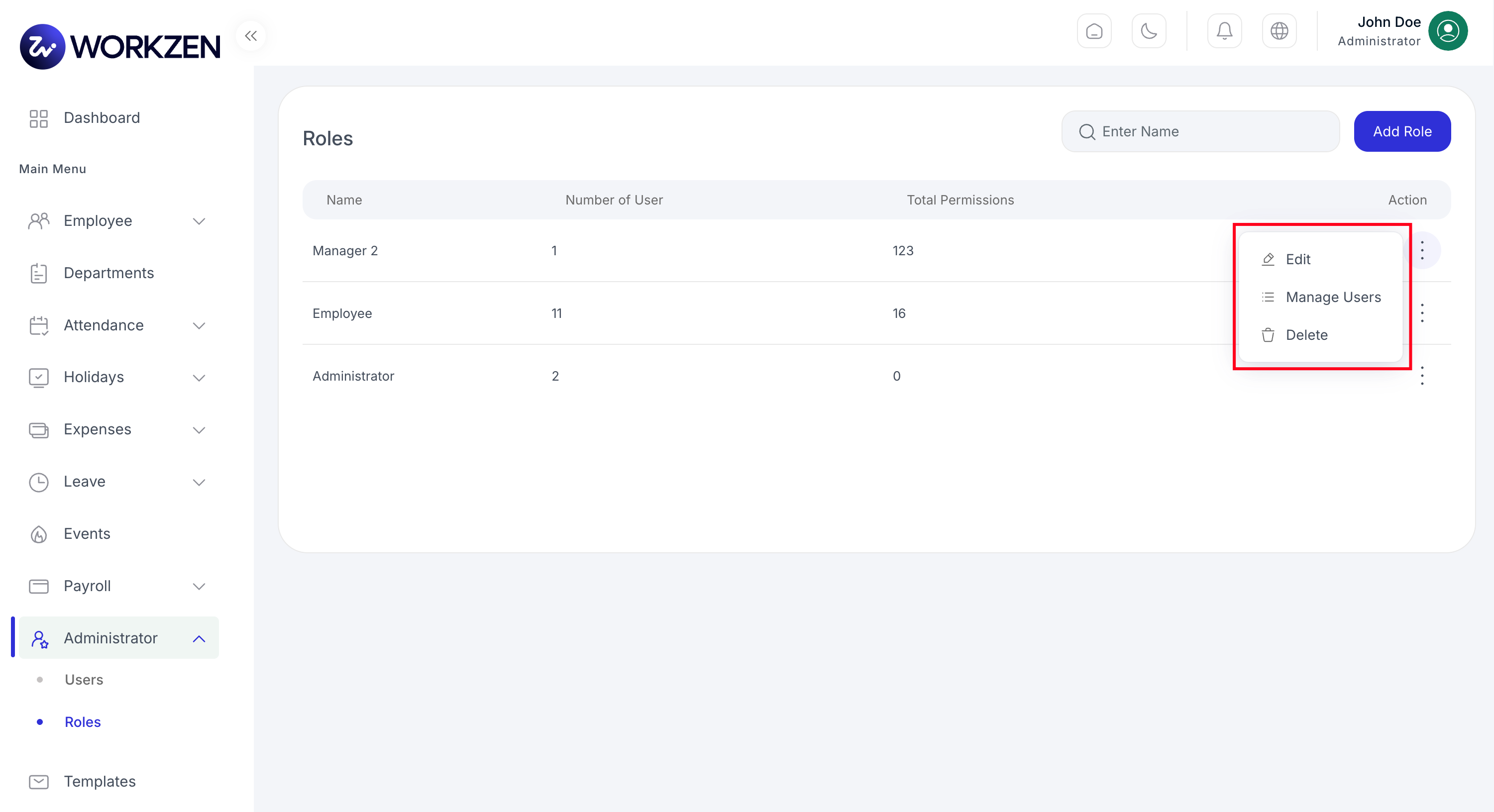
Role definitions.
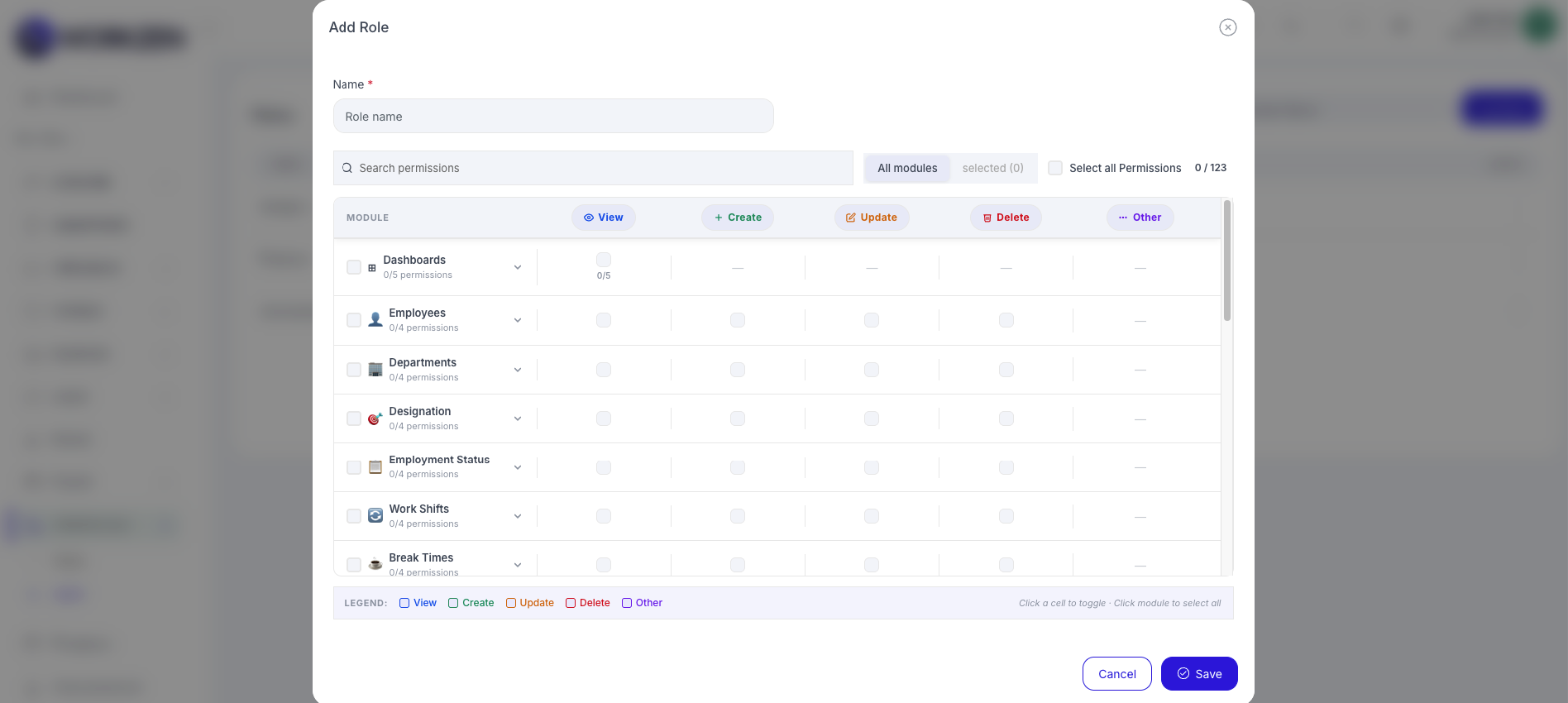
Add or edit a role and its permissions.
Attendance & Time
Review daily attendance, configure how attendance is calculated, restrict access by IP if needed, and submit attendance-related requests.
Daily logs
Inspect check-in and check-out records, hours, and exceptions by day or employee.
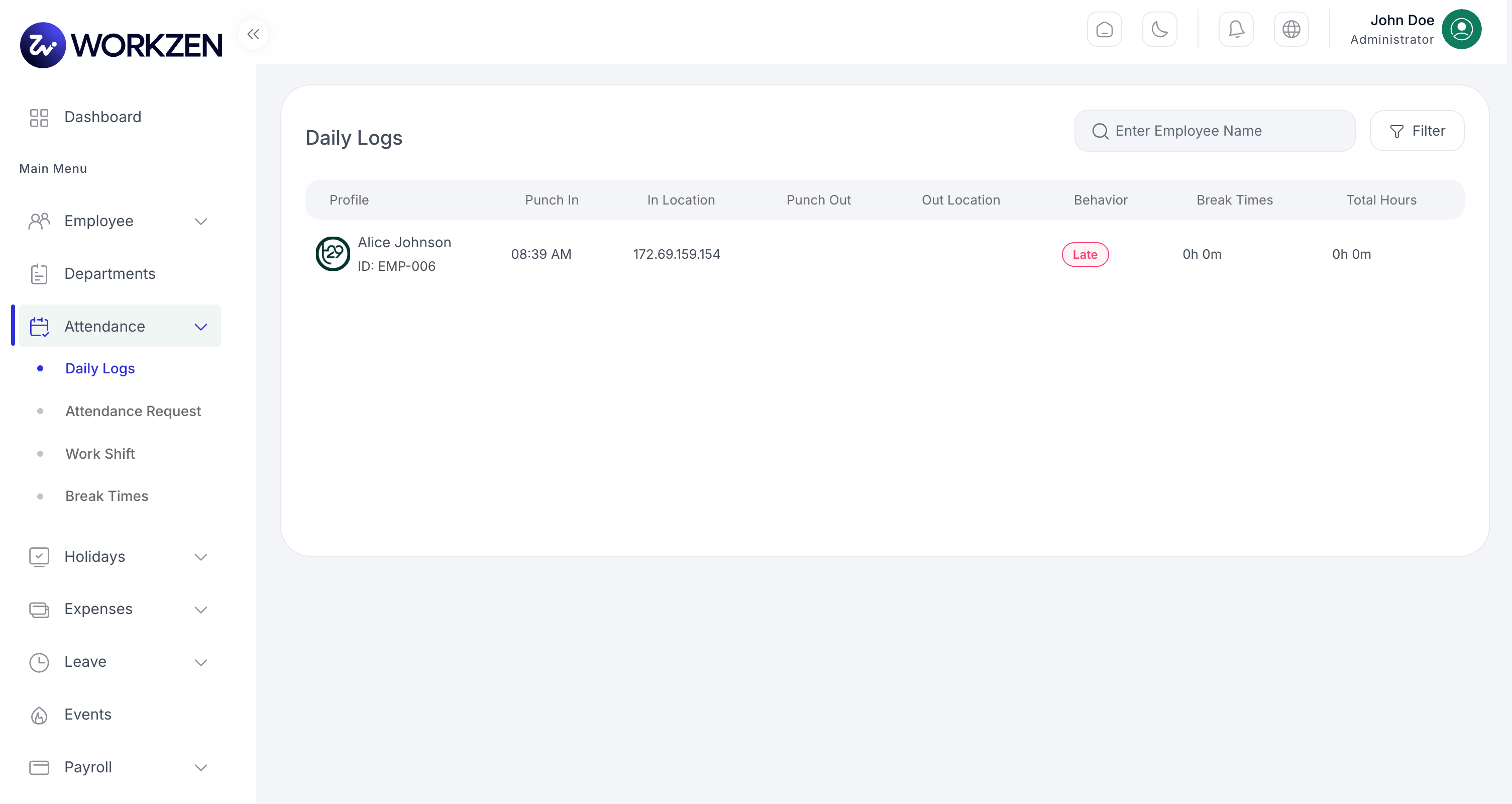
Daily logs view.
Attendance rules & IP
Workday definitions, grace times, calculations, and optional IP allowlists are configured under Settings → Attendance Settings.
Attendance requests
Submit or process requests that adjust attendance when exceptions occur.
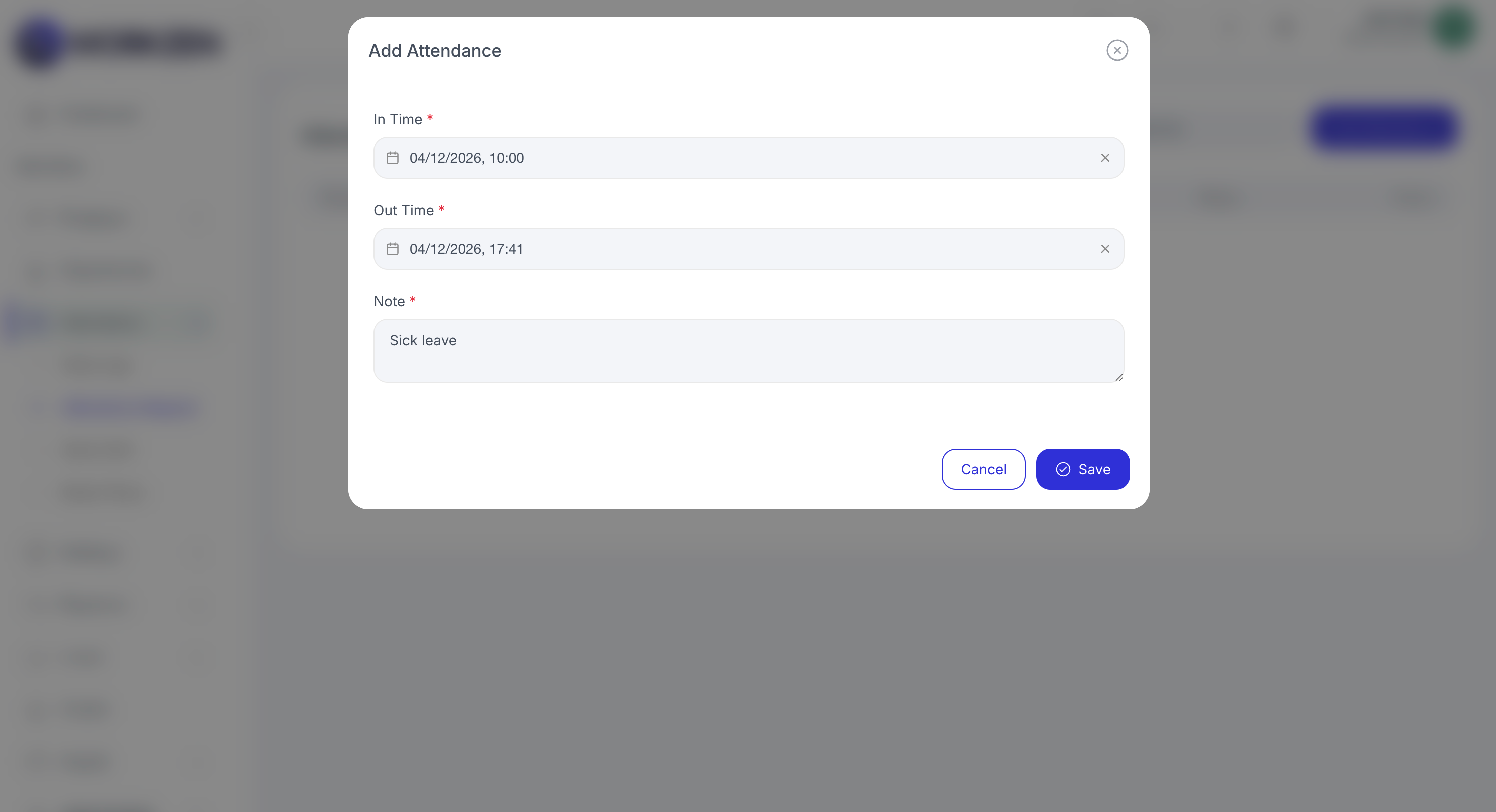
Create an attendance request.
Work Shifts & Breaks
Define standard shifts, scheduled assignments, and break policies that drive schedules and attendance.
Work shifts
- Shift list: Overview of named shifts and times.
- Add shift: Configure start, end, and related options.
- Scheduled shift: Assign shifts to employees or teams for specific dates.
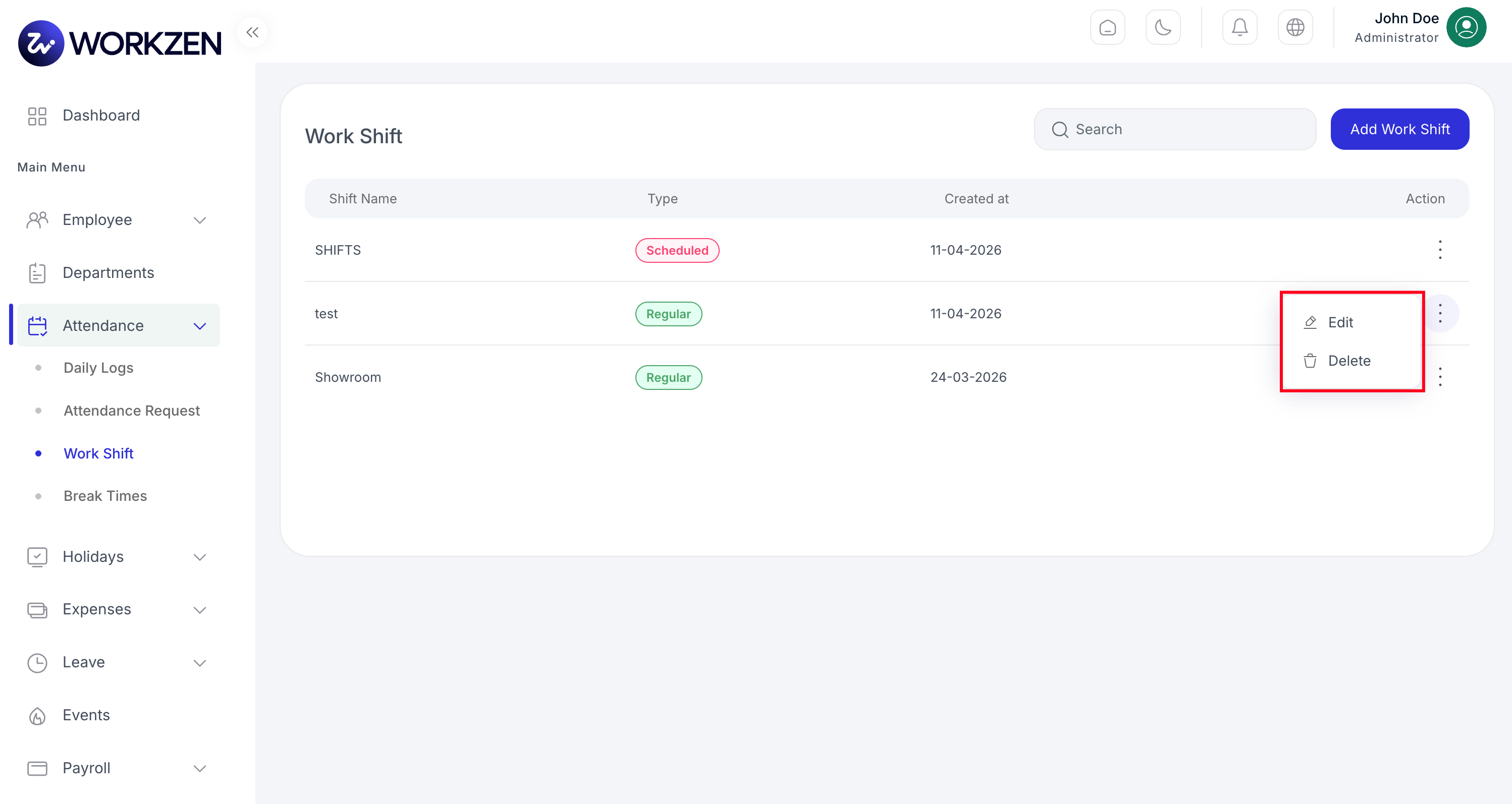
Work shift list.
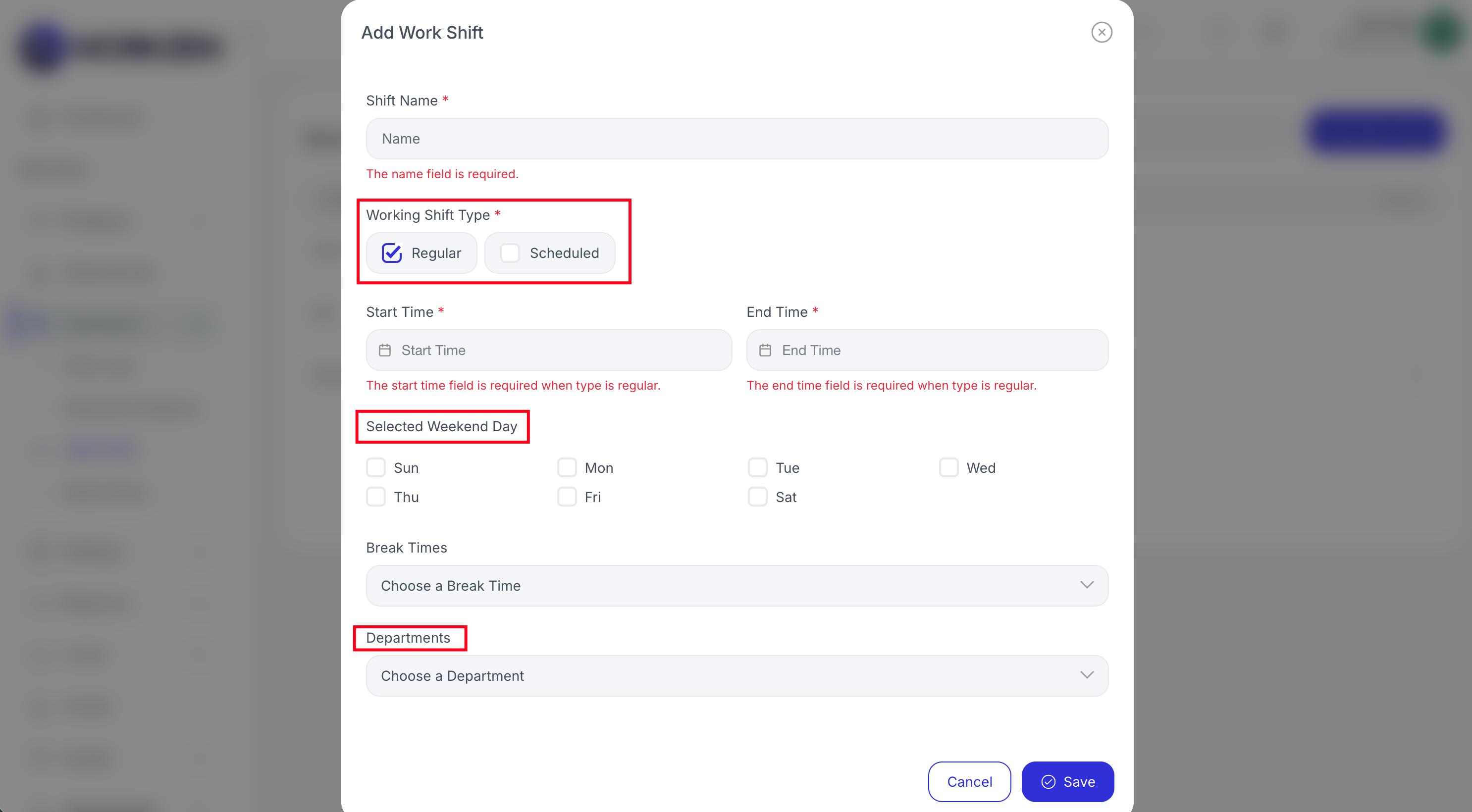
Add or edit a work shift.
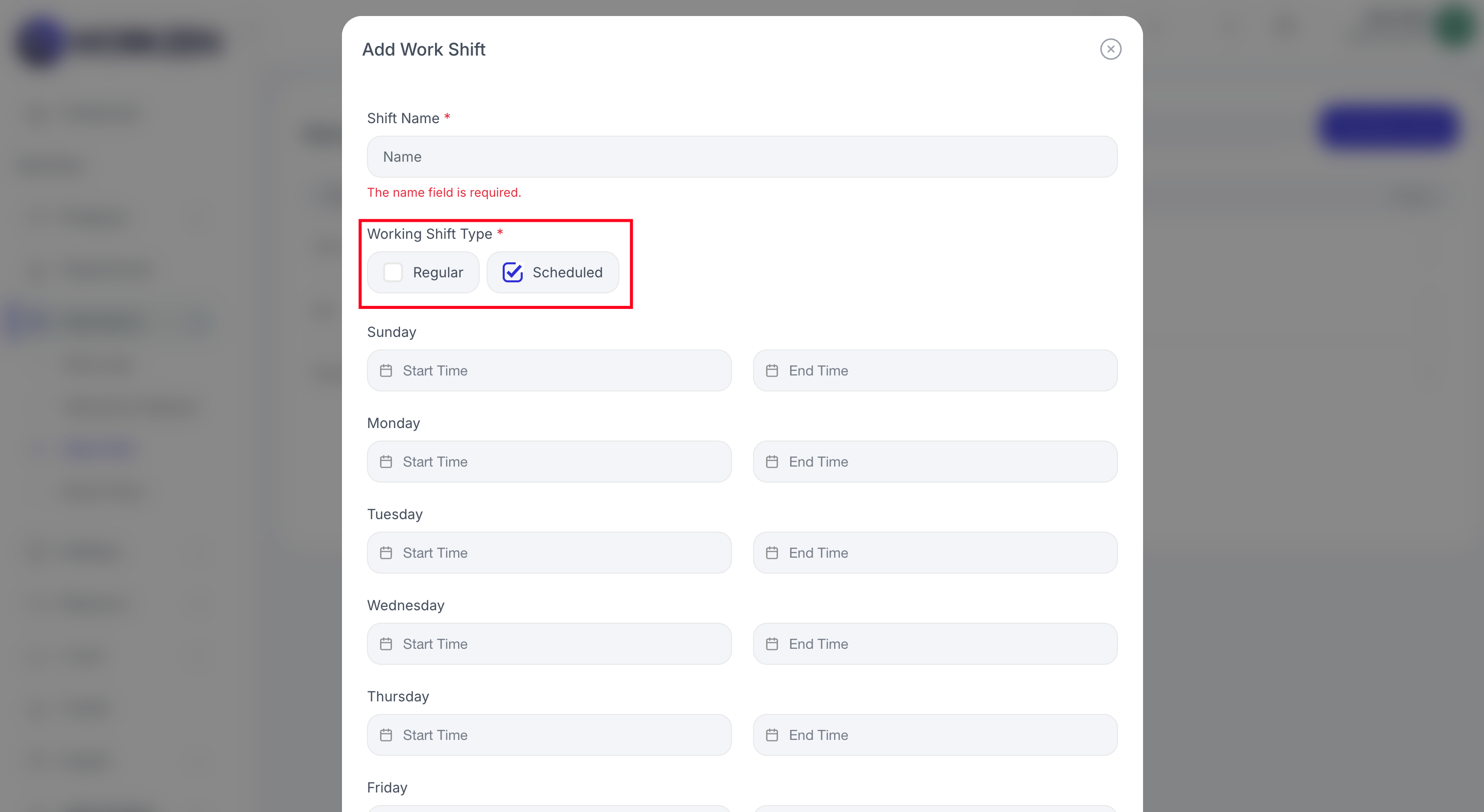
Schedule a work shift assignment.
Break times
Define break windows that pair with shifts and attendance tracking.
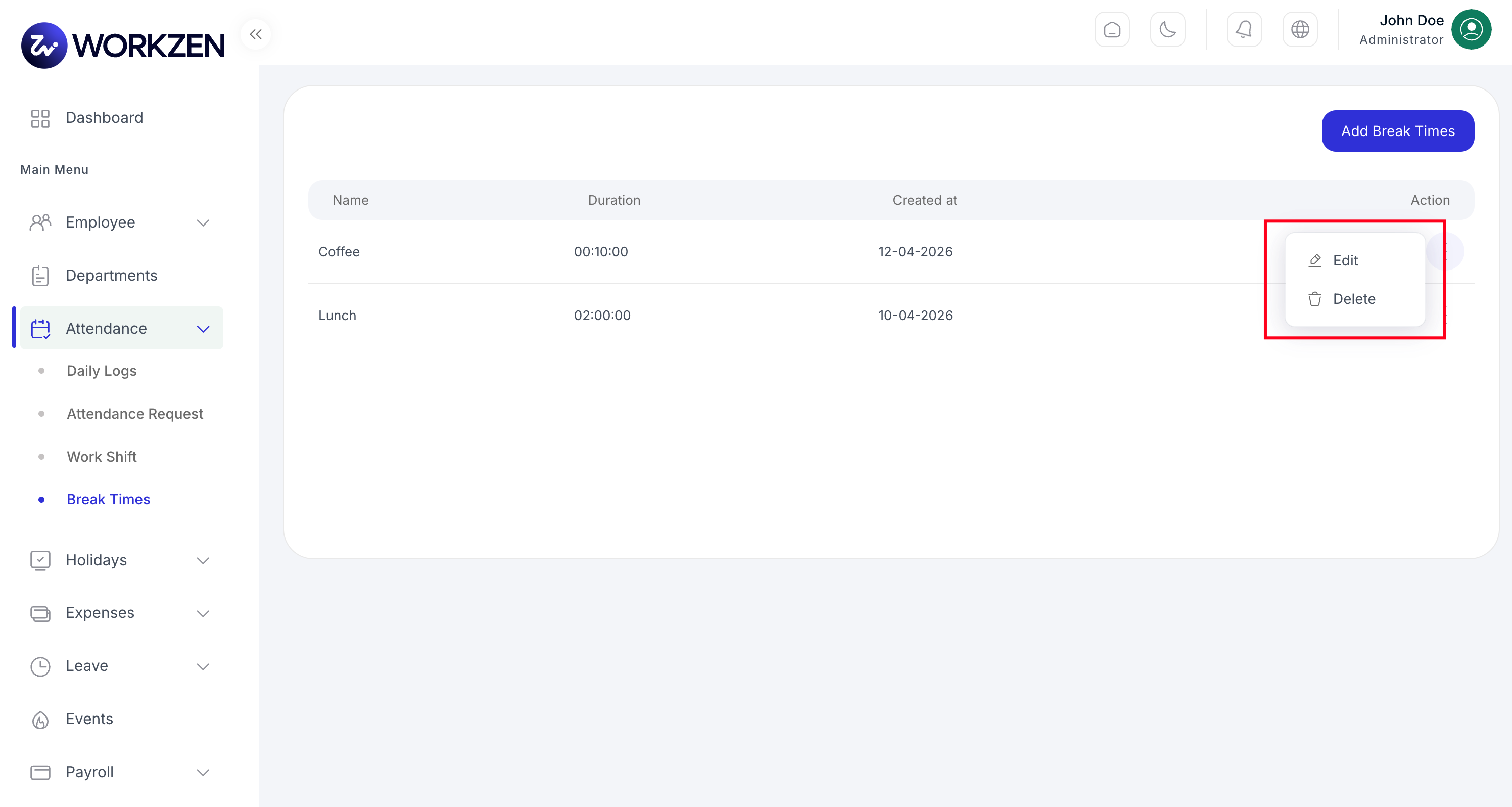
Break time definitions.
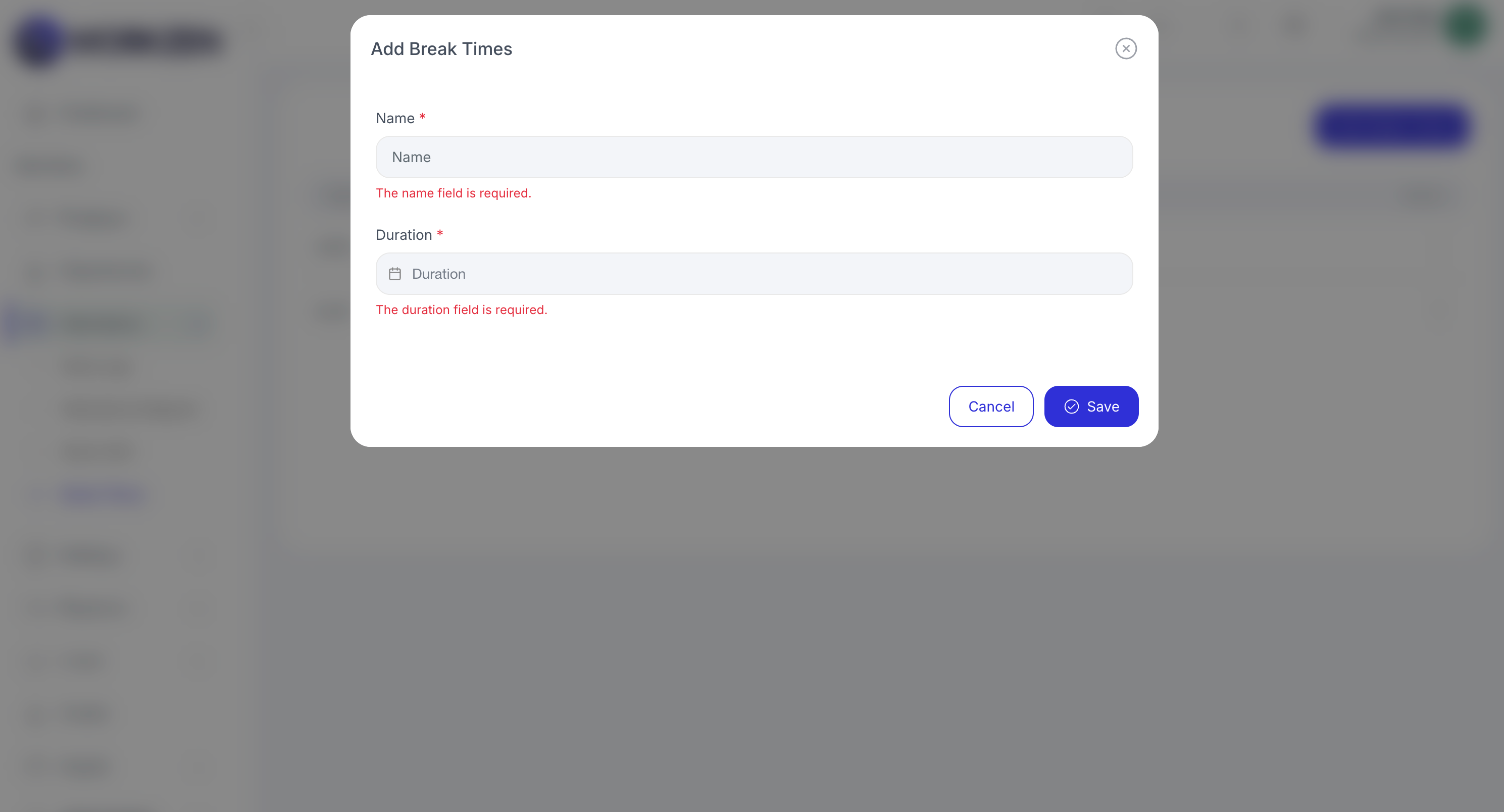
Add or edit a break period.
Leave
Configure leave types, approval settings, and monitor incoming requests.
Requests & settings
- Request list: Pending and historical leave with status and duration.
- Leave settings: Policies and defaults are set under Settings → Leave Settings.
- Leave types: Catalog of leave categories (annual, sick, unpaid, etc.).
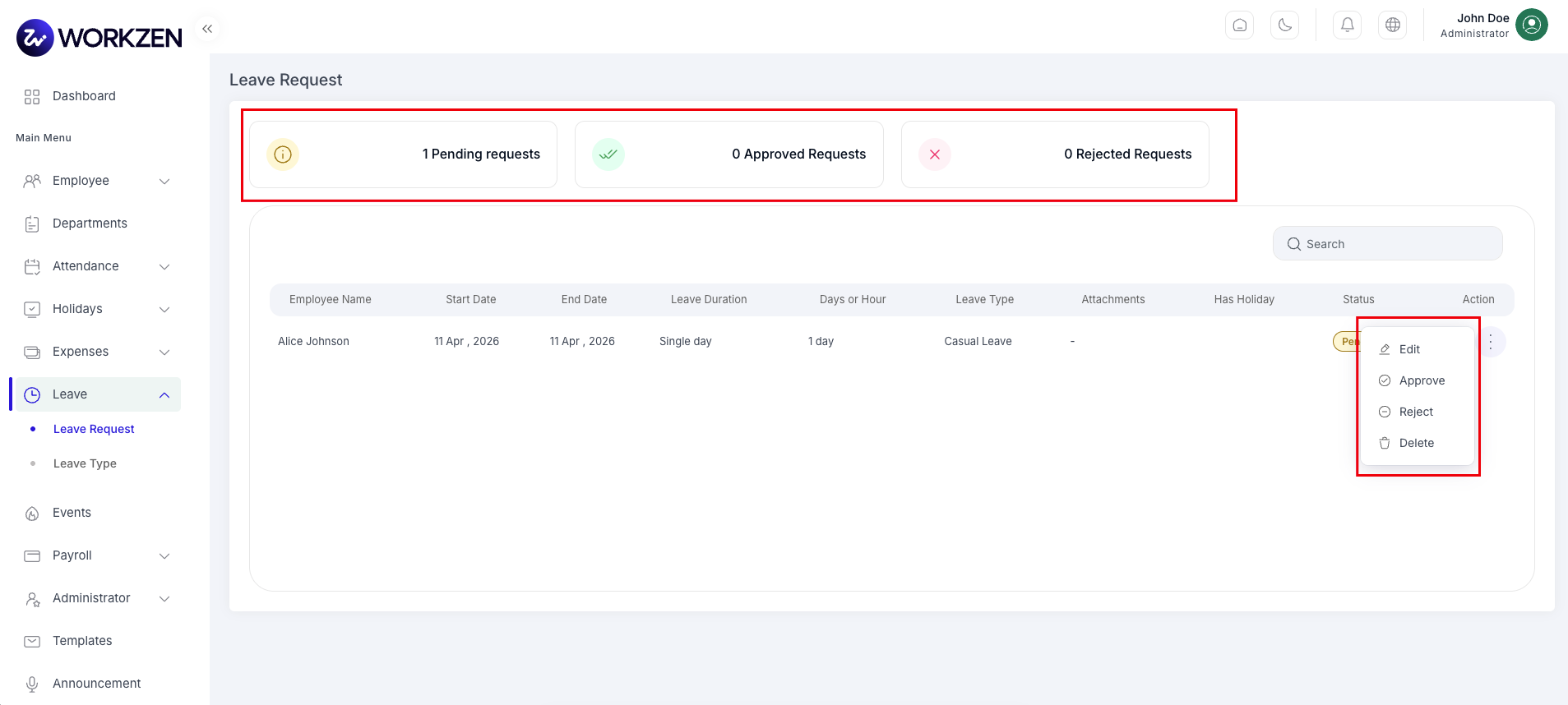
Leave requests list.
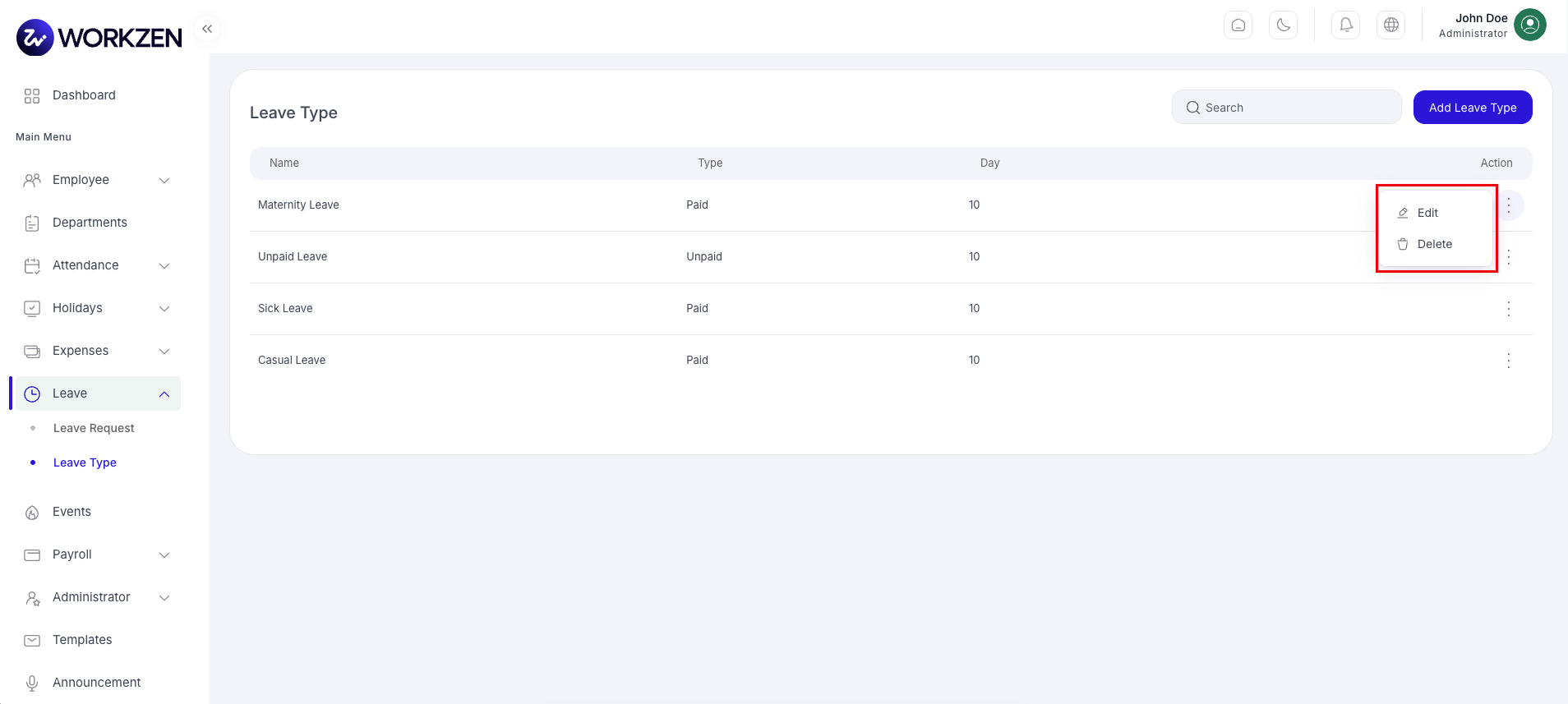
Leave types.
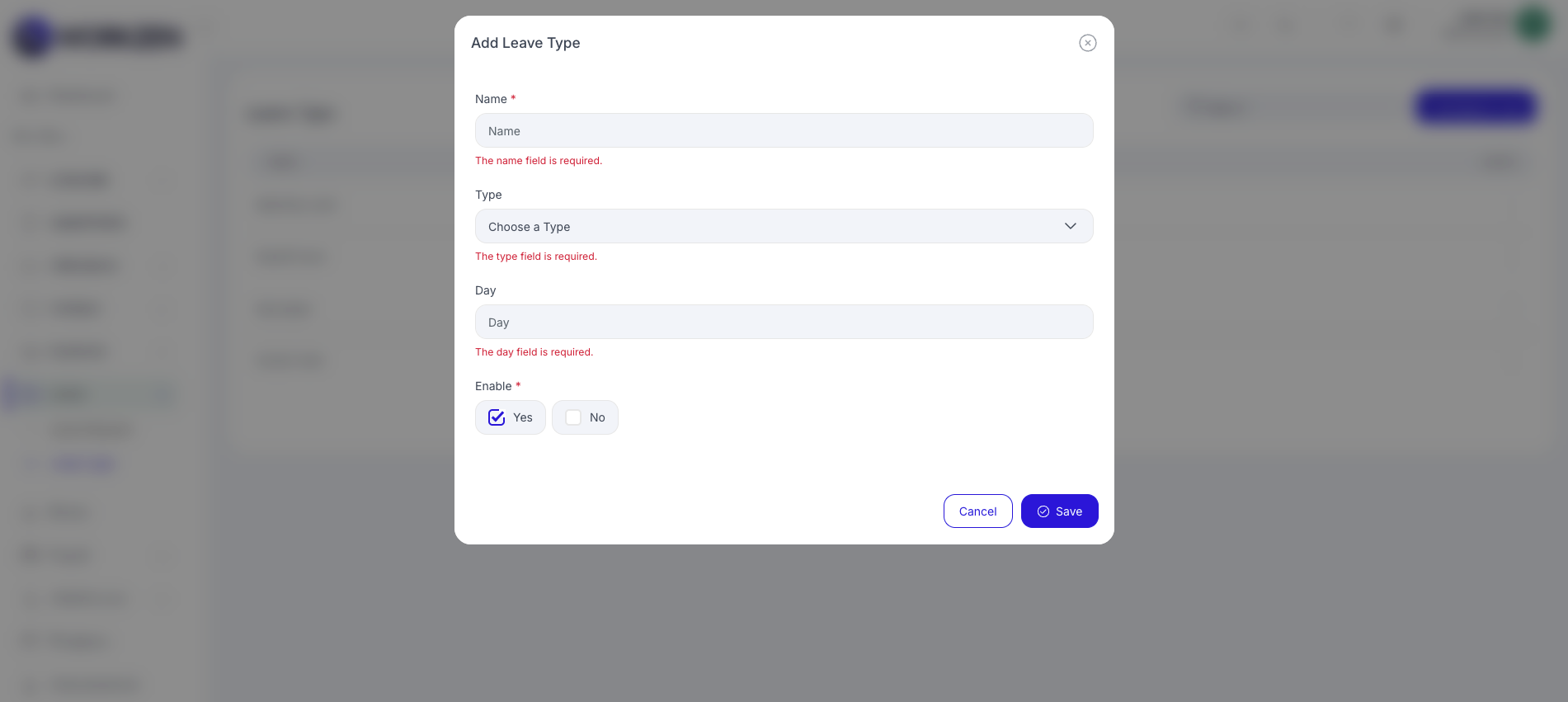
Add or edit a leave type.
Payroll
Run pay cycles, review payslips, distribute payslips, and tune payroll visibility settings.
Payruns
- Payrun list: Historical and in-progress payroll runs.
- Default payrun: Starting point or template for a new payroll period.
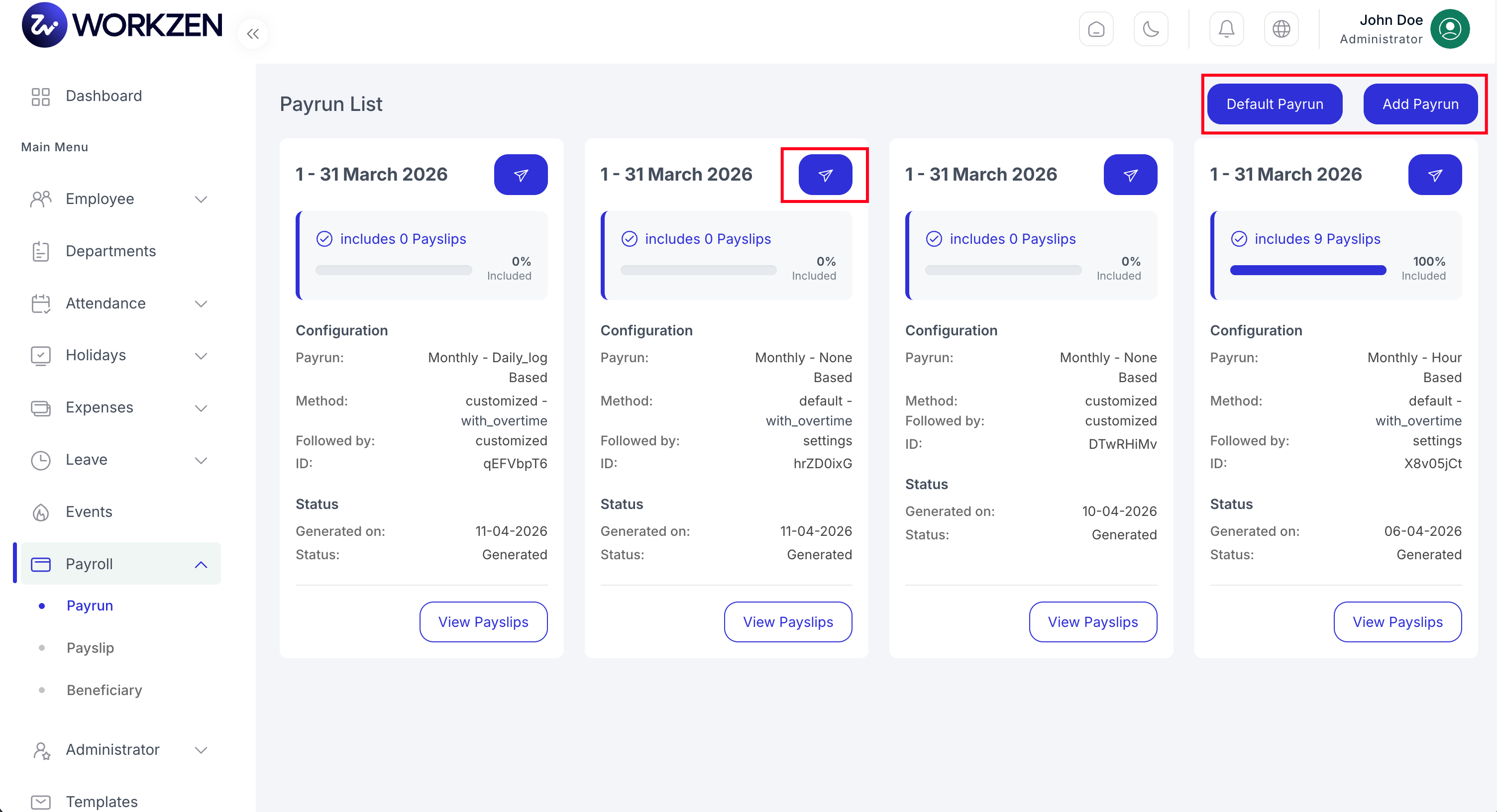
Payrun list.
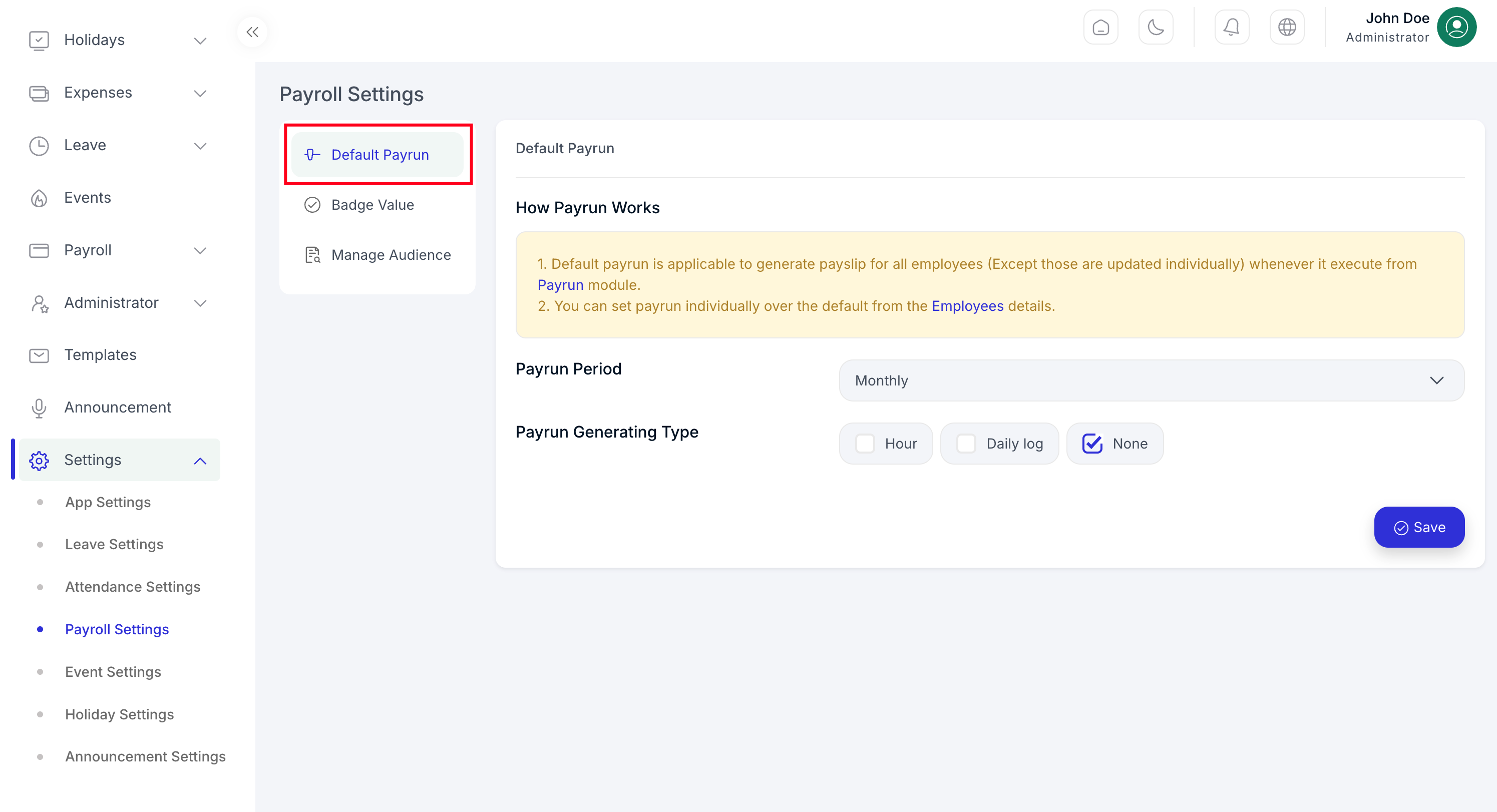
Default or draft payrun setup.
Creating a payrun
Start a new run by choosing the payroll period, then pick a default or custom payrun path, and attach beneficiaries when the flow requires them.
- Payroll period: Select the period dates or cycle the payrun applies to.
- Default vs custom: Use a standard template or configure a custom payrun for special cases.
- Beneficiaries: Link or confirm beneficiaries for disbursement as part of payrun creation.
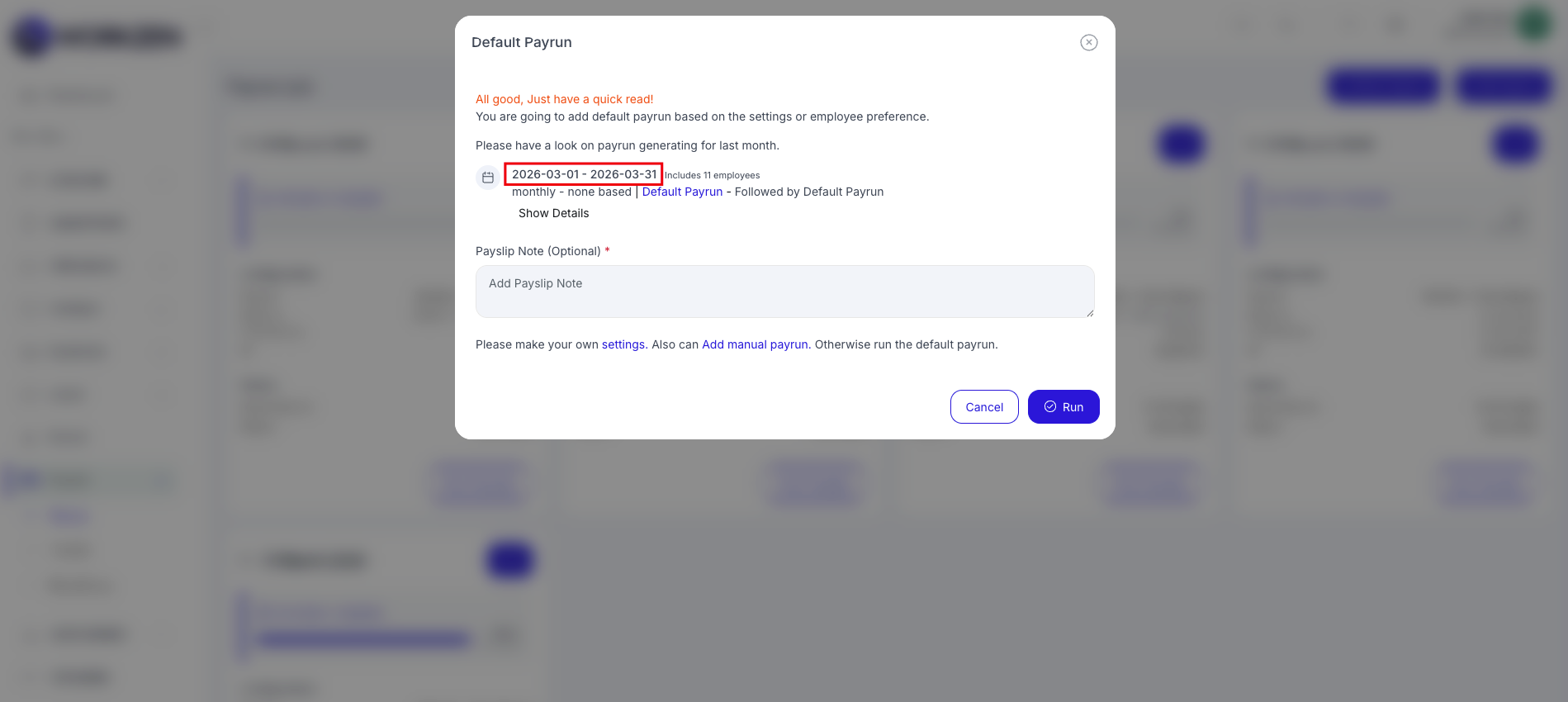
Create a default (standard) payrun.
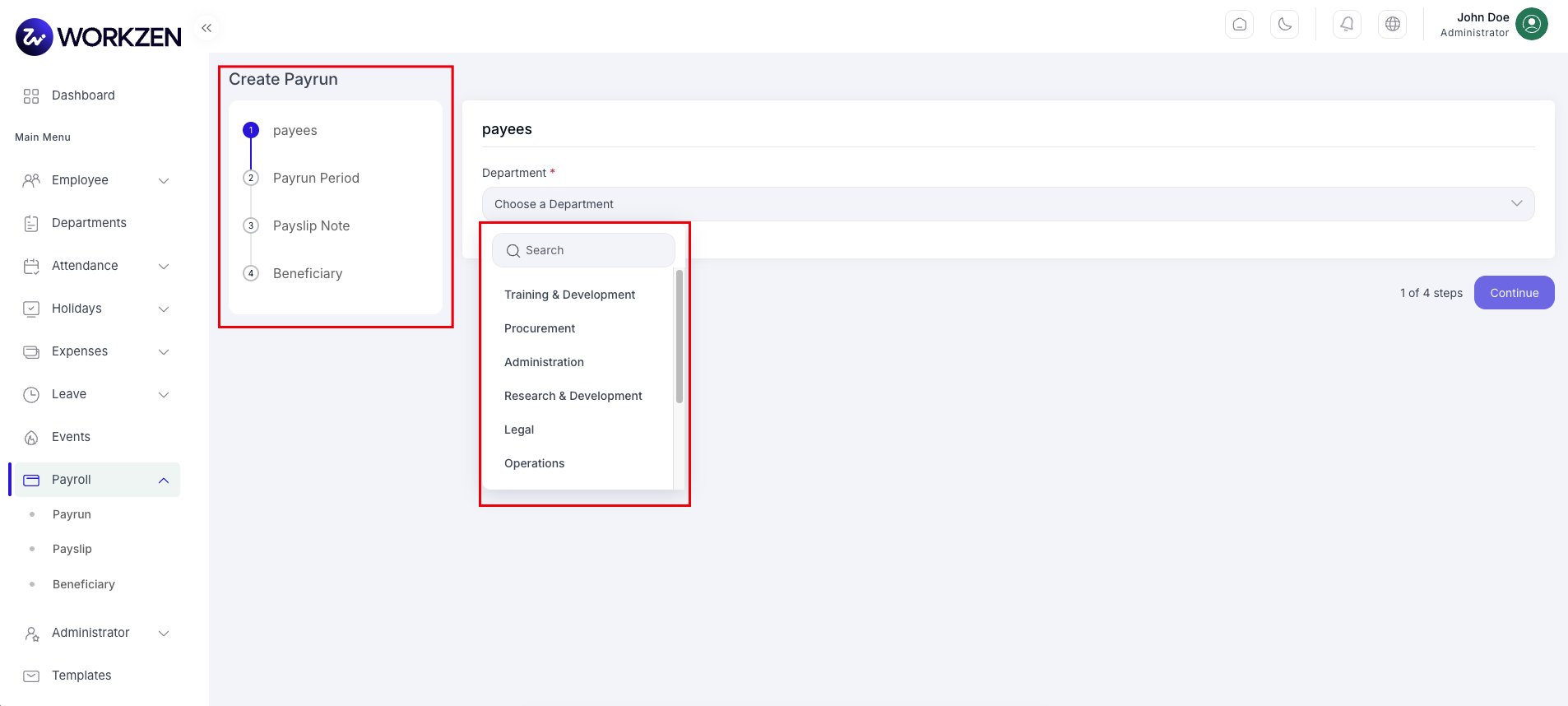
Choose departments for a custom payrun.
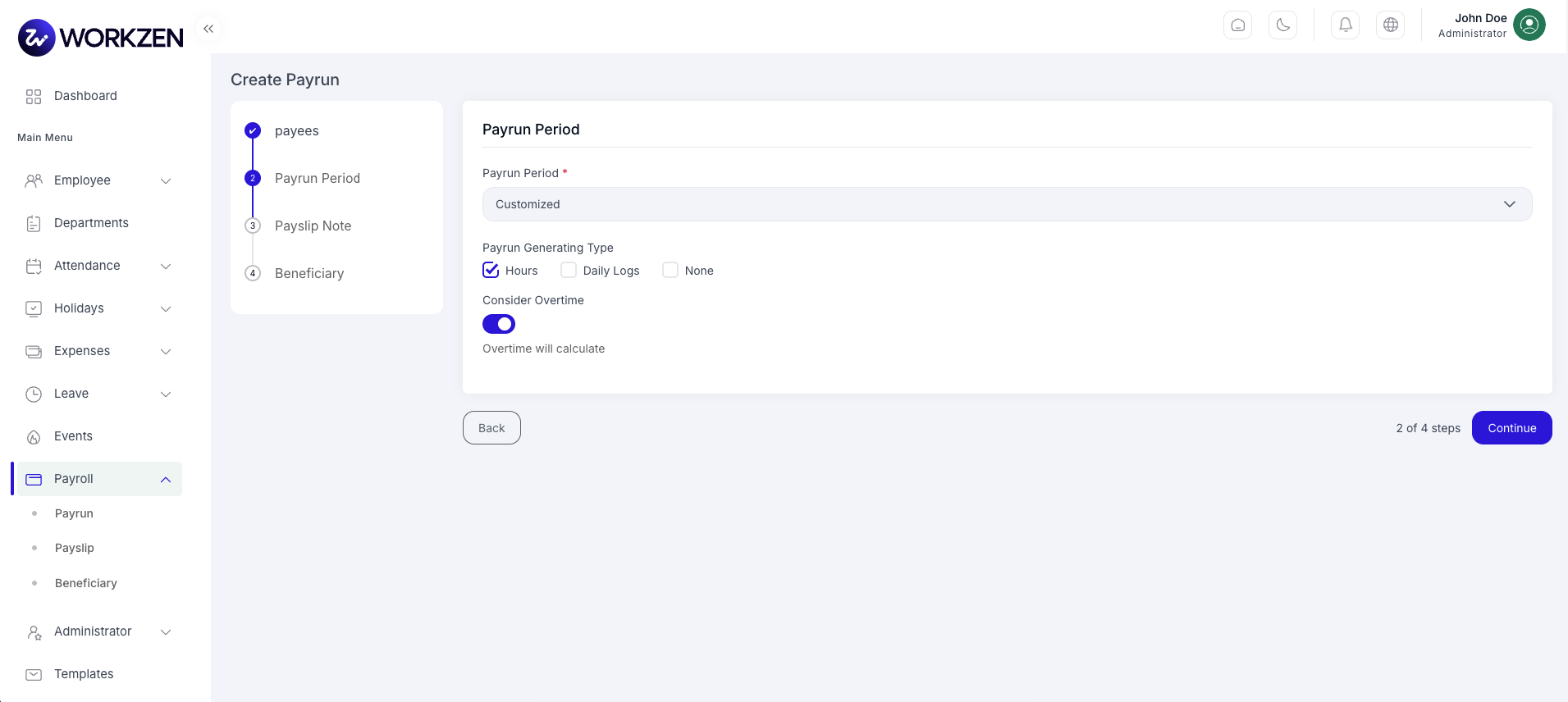
Choose the payroll period for a new payrun.
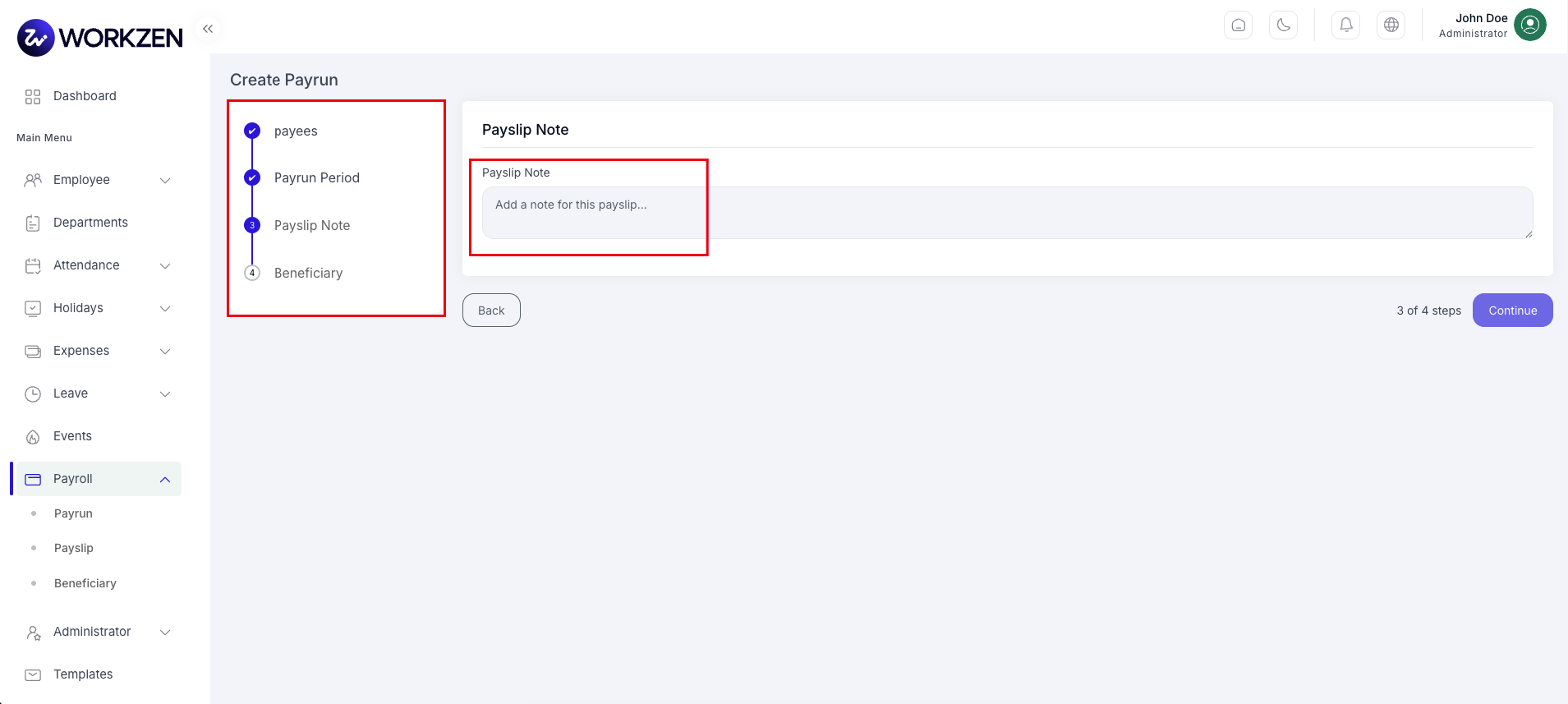
Payslip notes (remarks or additional context).
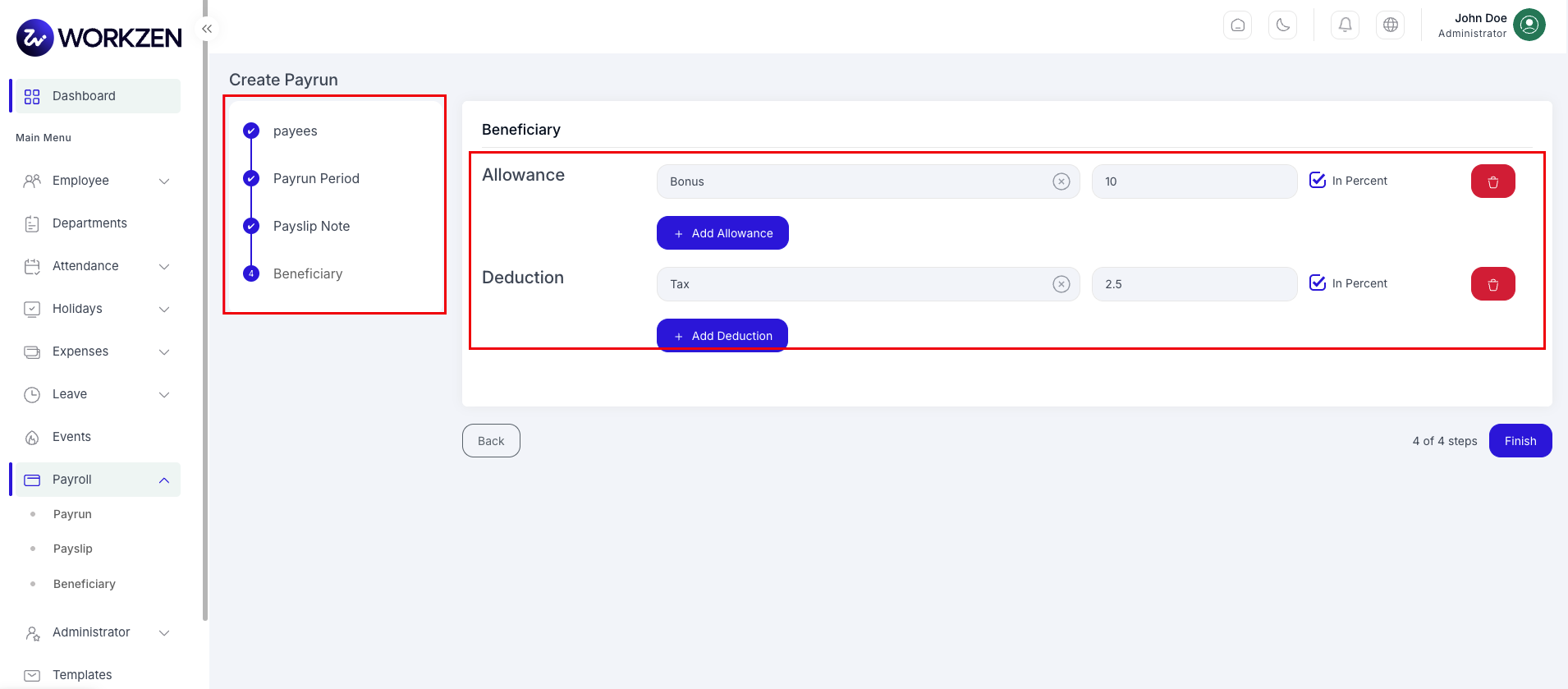
Set or confirm beneficiaries during payrun creation.
Payslips
Open individual payslips for line-by-line earnings and deductions, add internal or employee-facing notes where supported, and send payslips when ready.
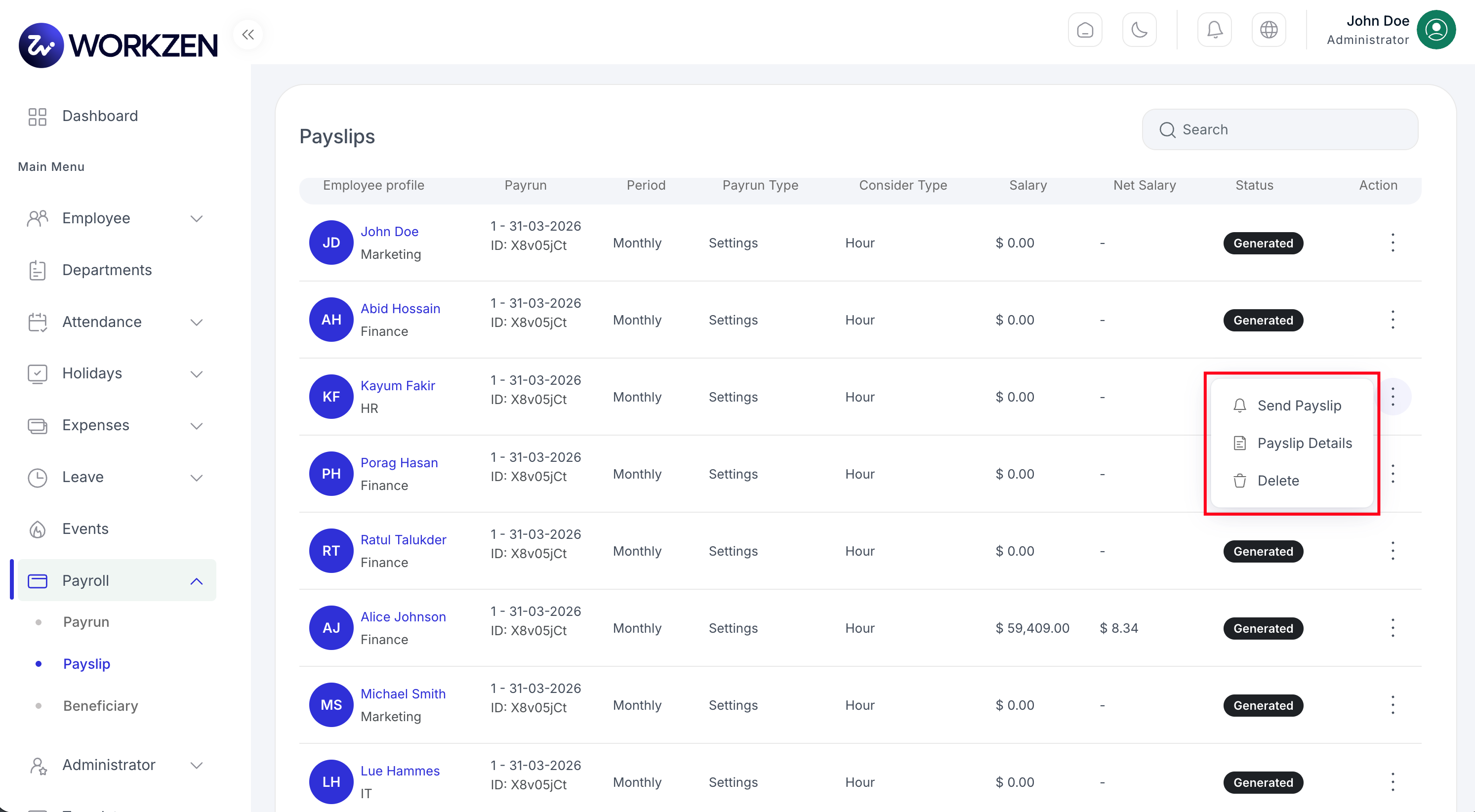
Payslips generated for a run.
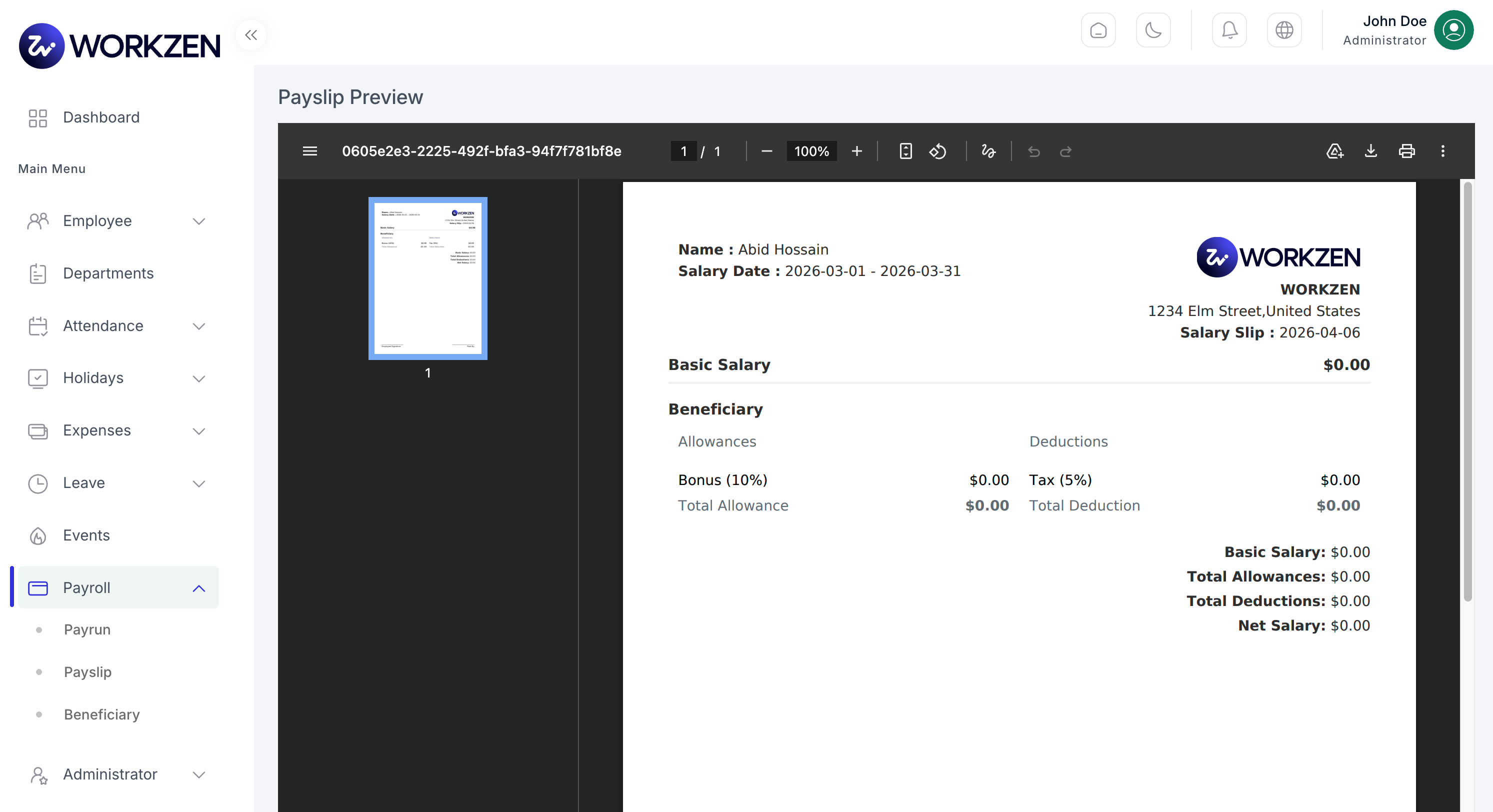
Payslip detail view.
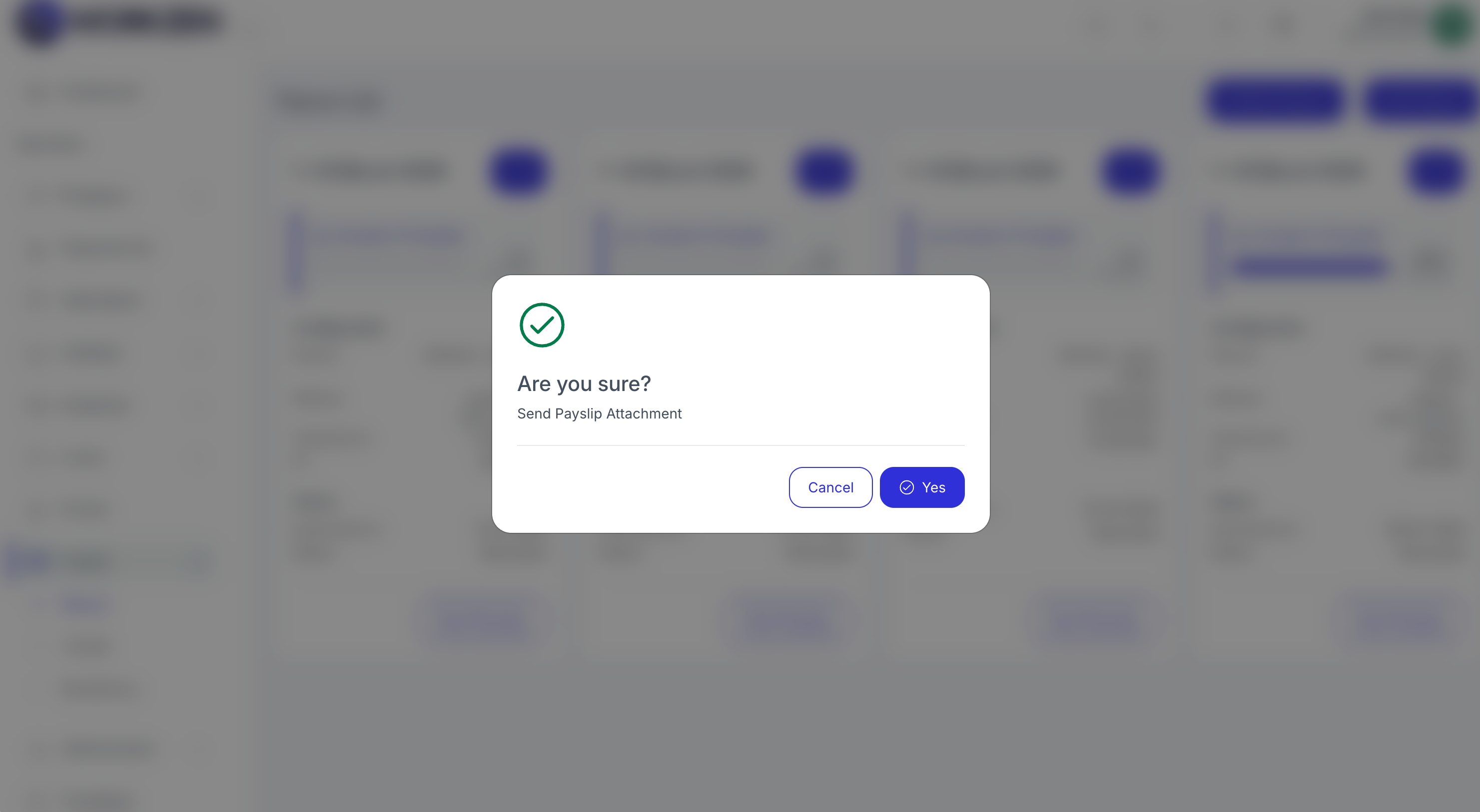
Send payslip to employees.
Payroll visibility
Badge and audience visibility options live under Settings → Payroll Settings.
Beneficiaries & Expenses
Maintain payout beneficiaries and categorize expenses for reporting and payroll-related flows.
Beneficiaries
Store beneficiary details used when processing payments or reimbursements.
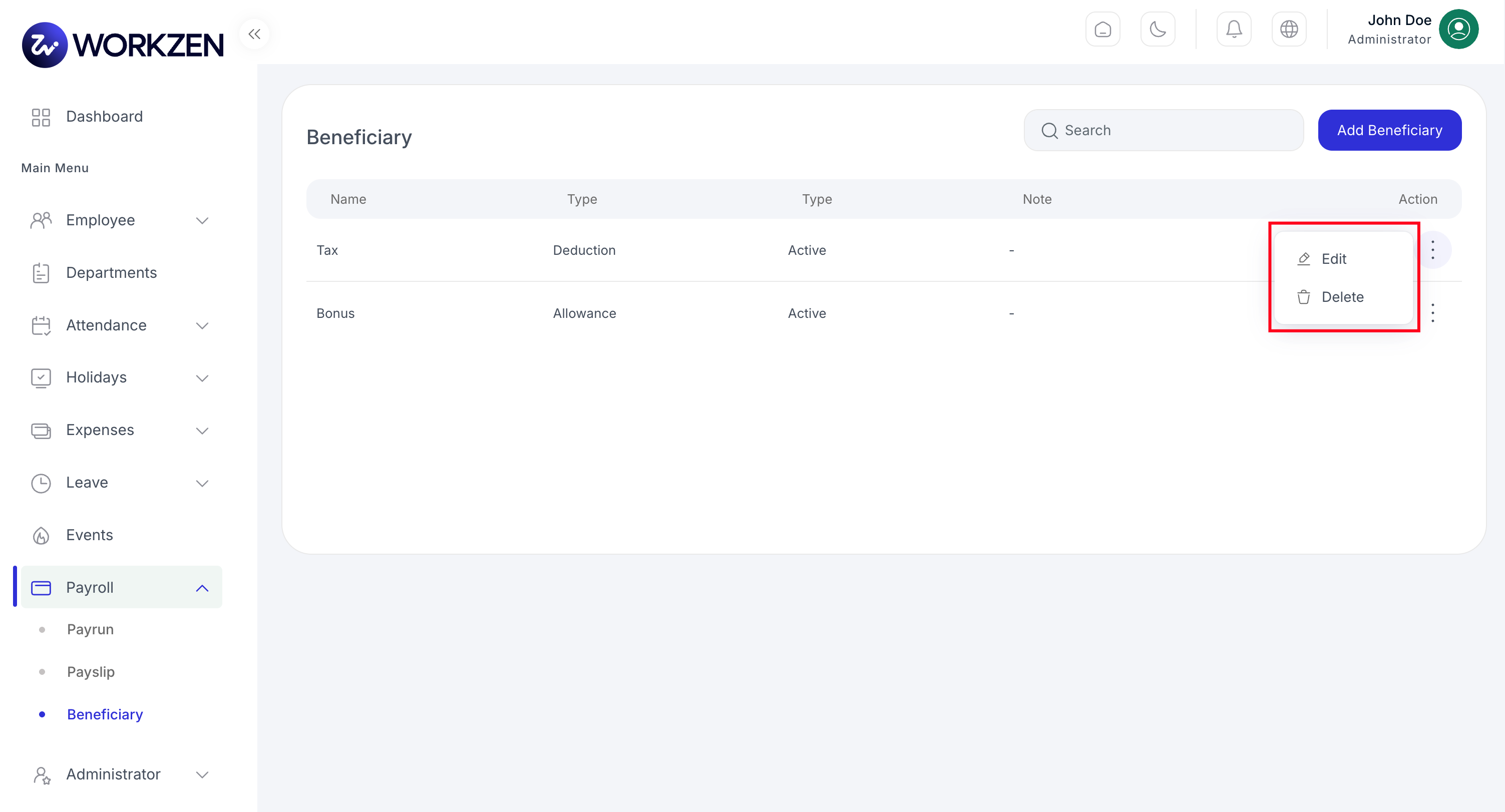
Beneficiary list.
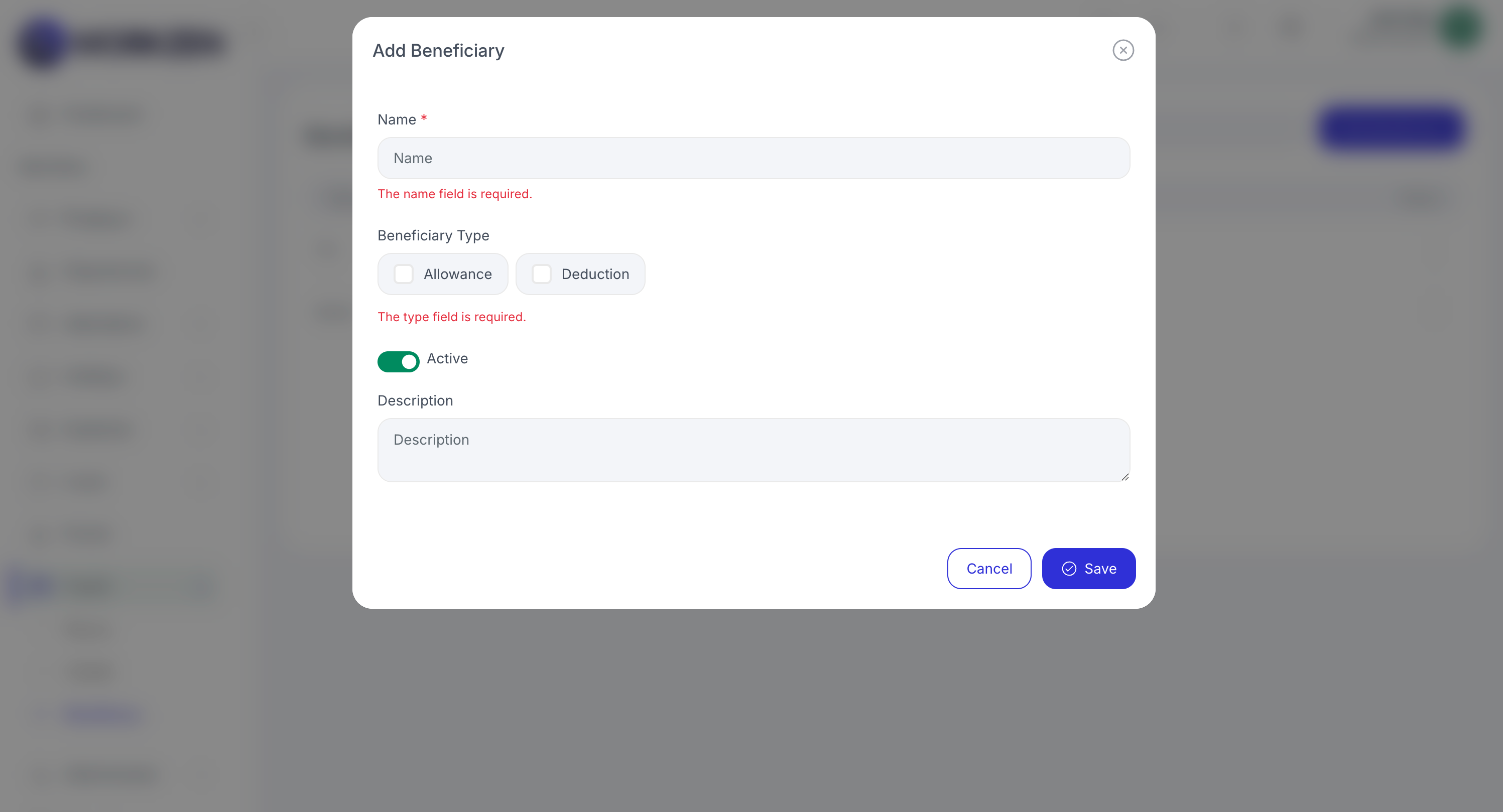
Add or edit a beneficiary.
Expense categories
Group expenses for approvals and accounting alignment.
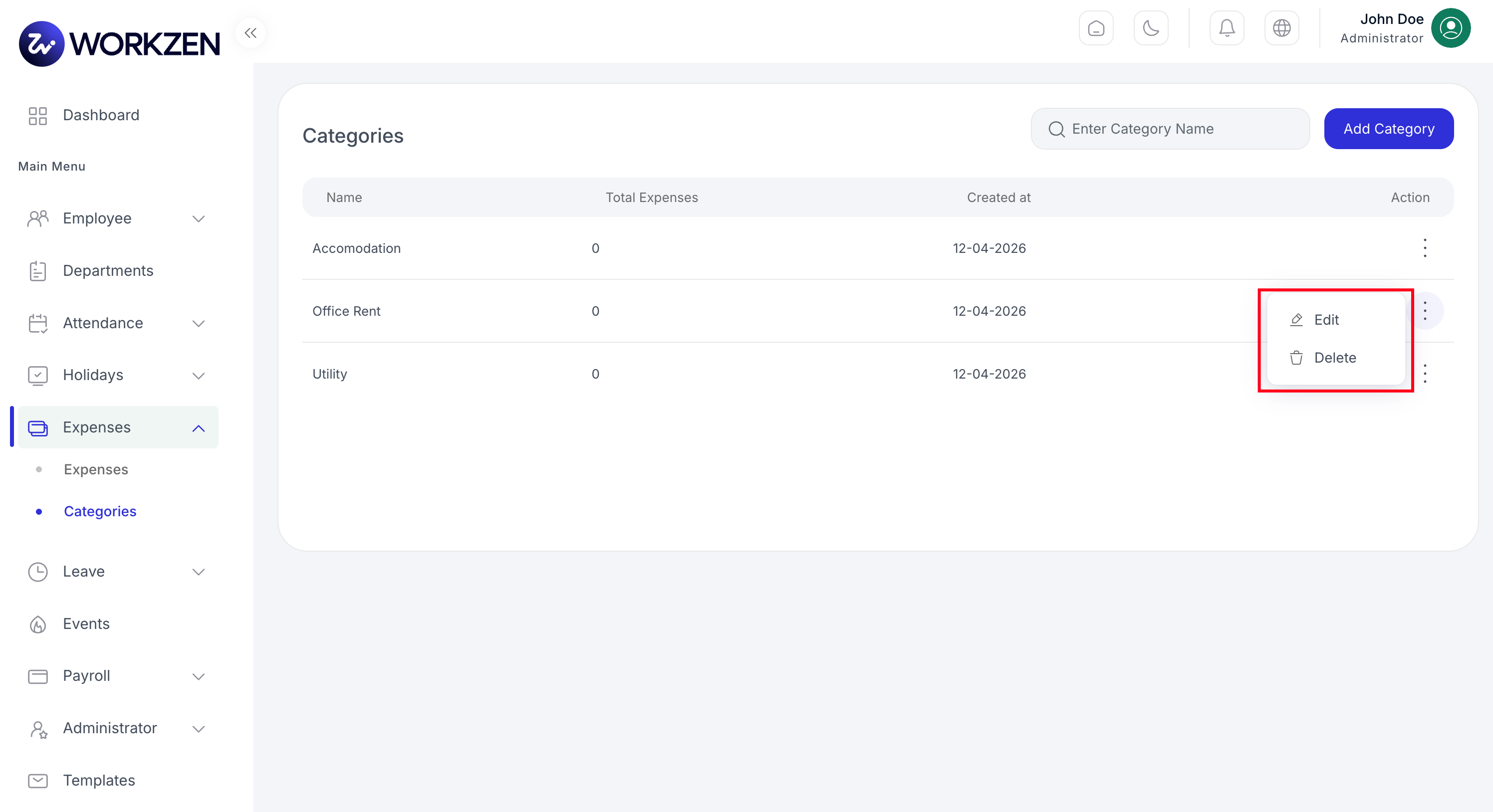
Expense categories.
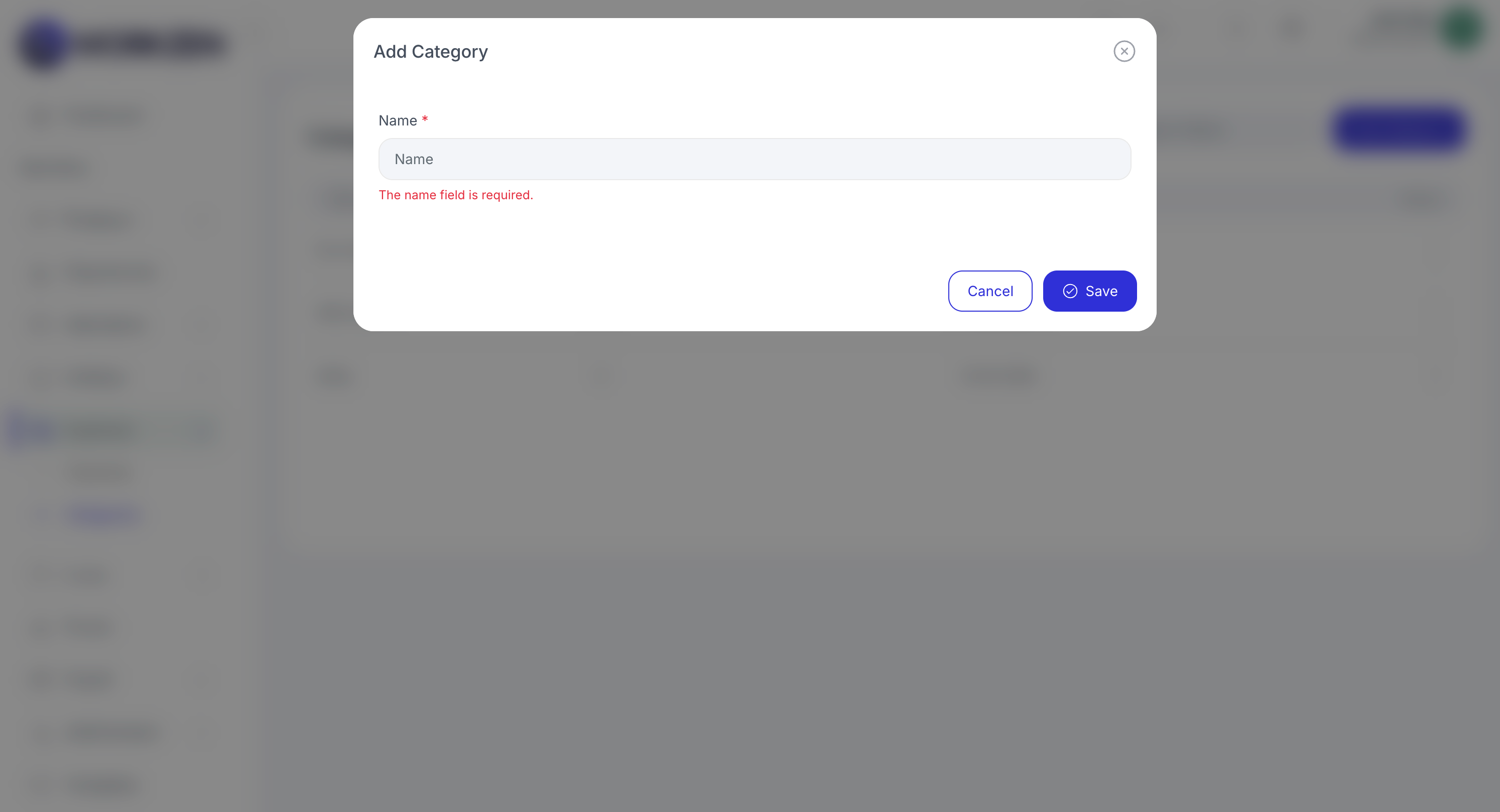
Add or edit an expense category.
Holidays & Events
Publish holidays on the calendar, tune holiday behavior, and manage company events.
Holidays
- List & calendar: See holidays in a list or calendar layout.
- Settings: Holiday behavior vs attendance and leave is configured under Settings → Holiday Settings.
- Add holiday: Create named holidays with date ranges and descriptions.
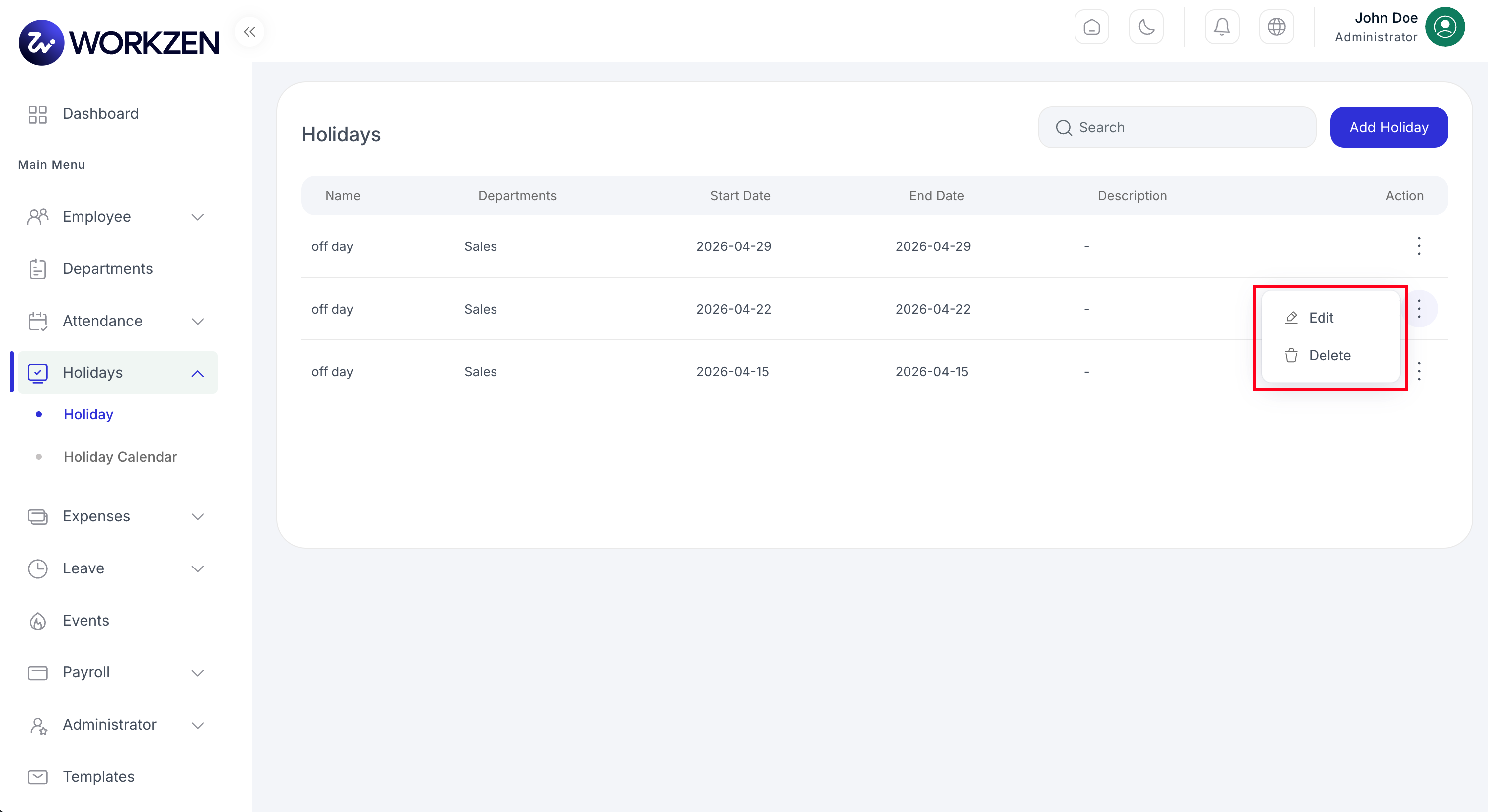
Holiday list.
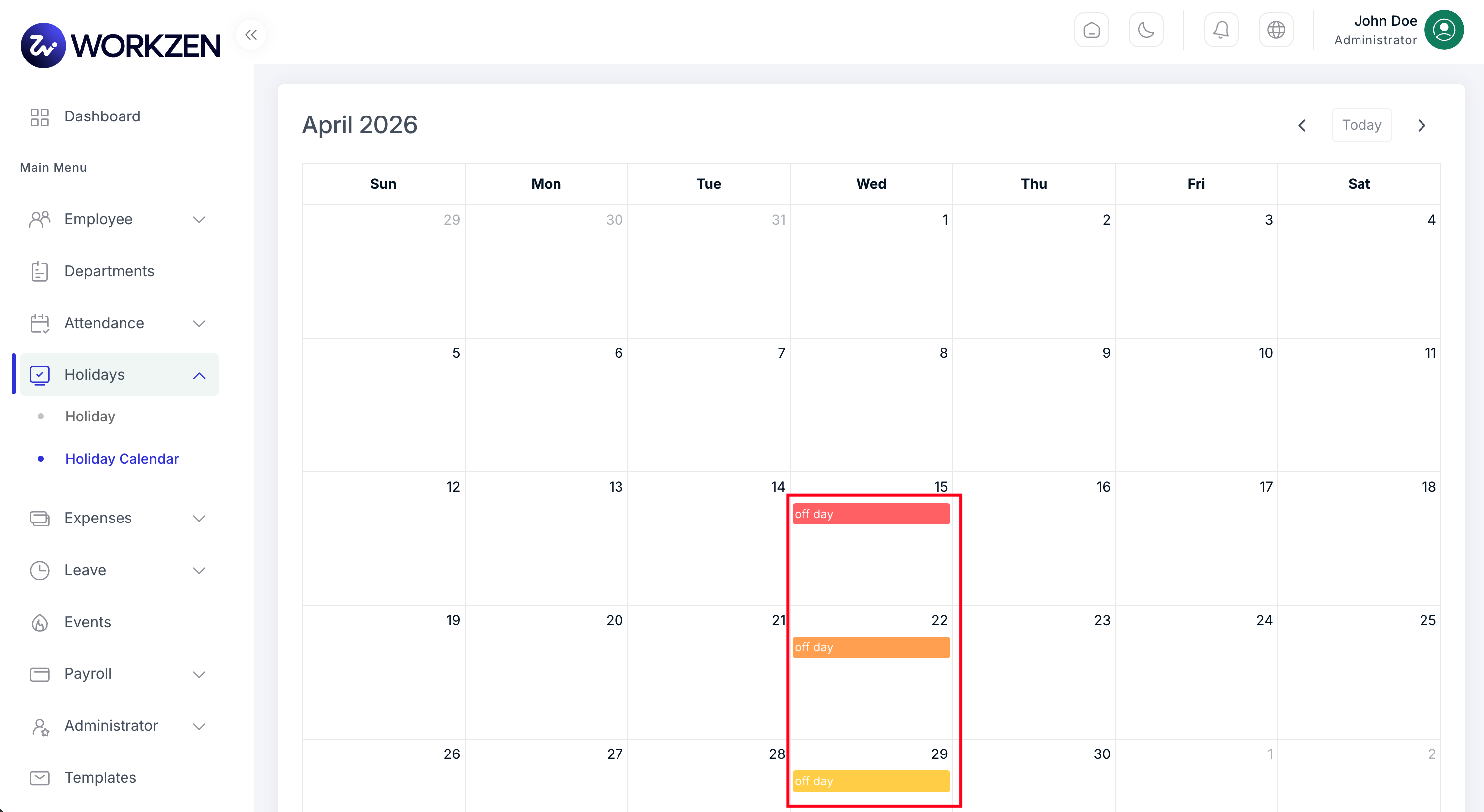
Holiday calendar view.
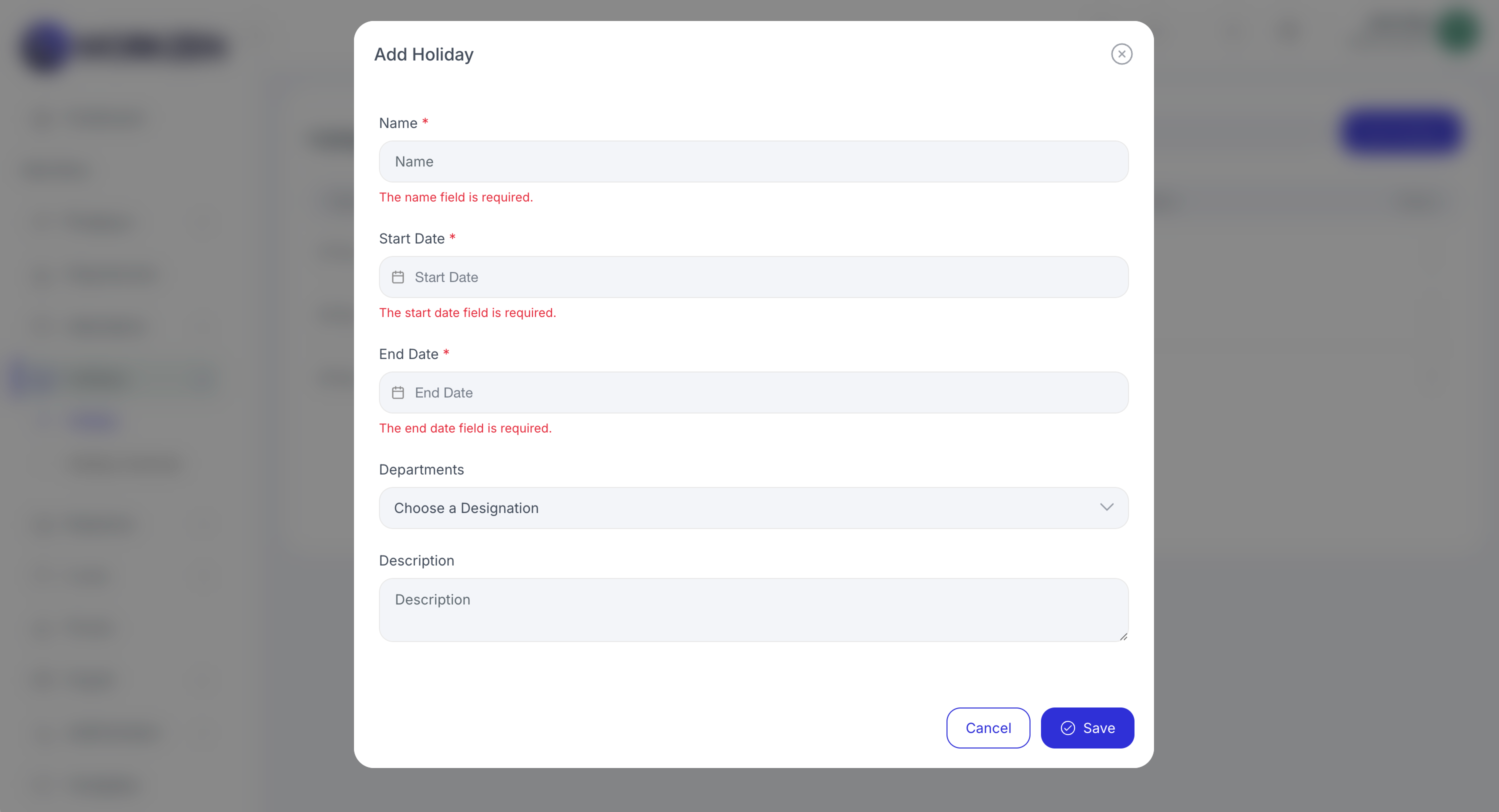
Add or edit a holiday.
Events
List internal events and create new ones for teams or the whole company. Module options are under Settings → Event Settings.
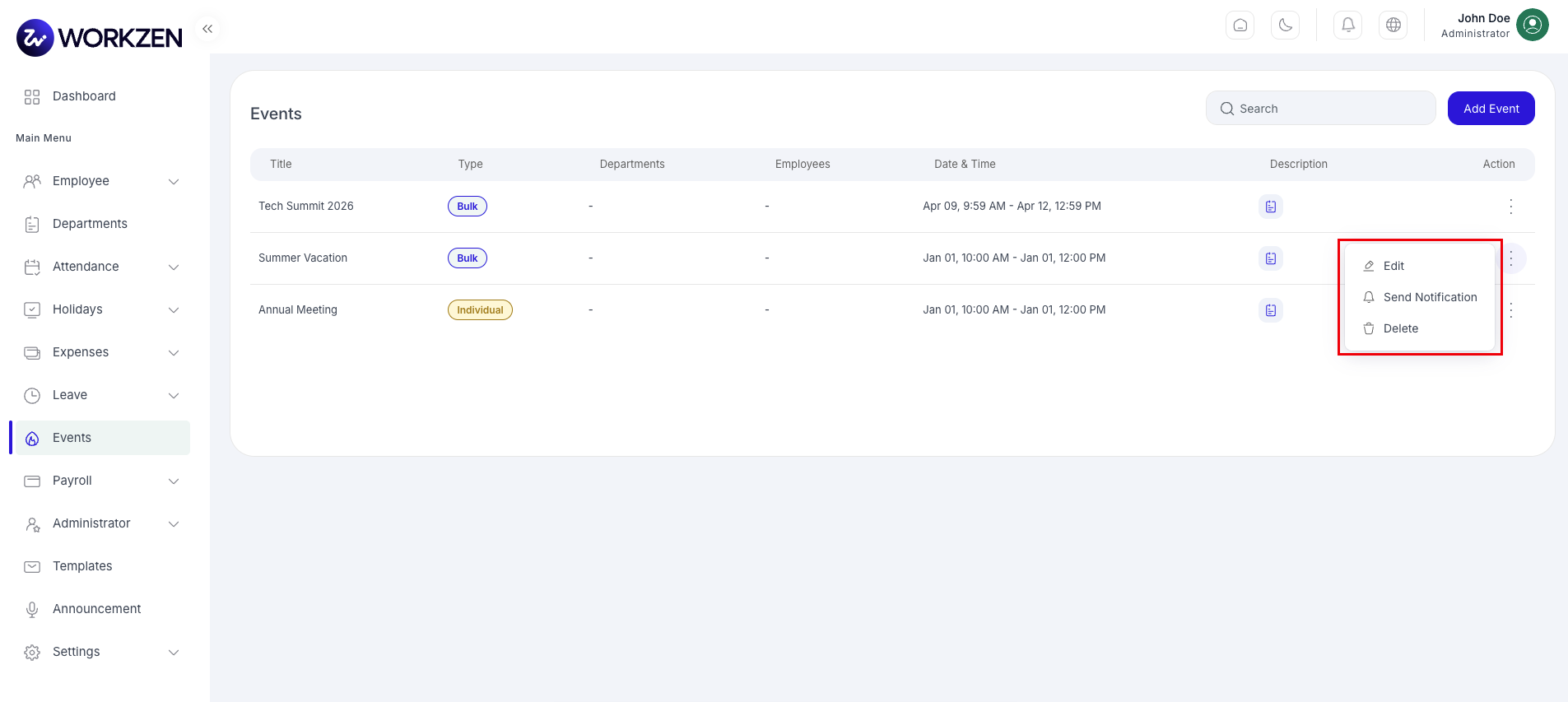
Company events list.
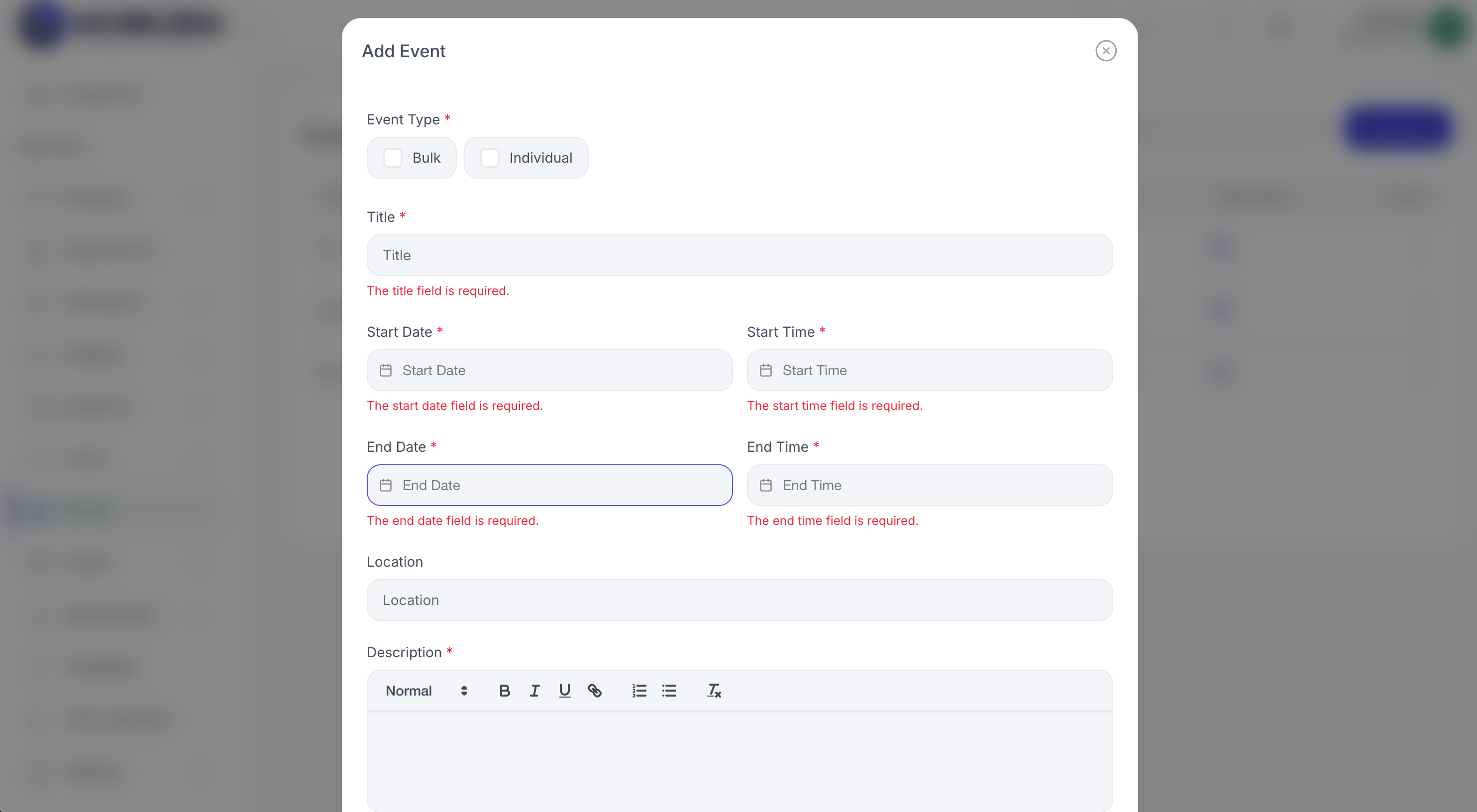
Create or edit an event.
Announcements
Broadcast updates to employees and tune how announcements behave.
List, settings, and compose
- Announcement list: Active and past announcements with targeting and dates.
- Settings: Defaults for posting and visibility are under Settings → Announcement Settings.
- Add announcement: Compose body, audience, and schedule as supported.
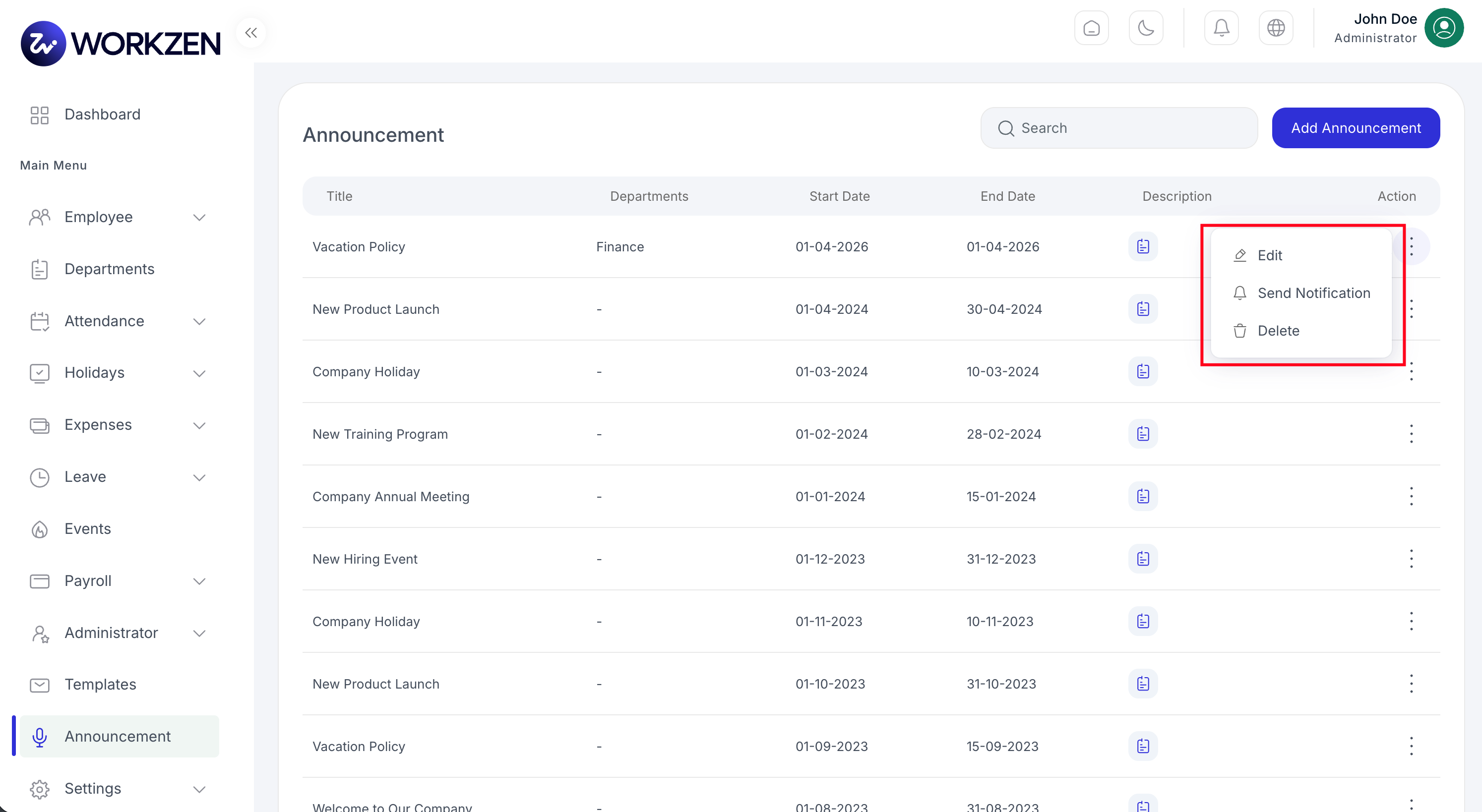
Announcements list.
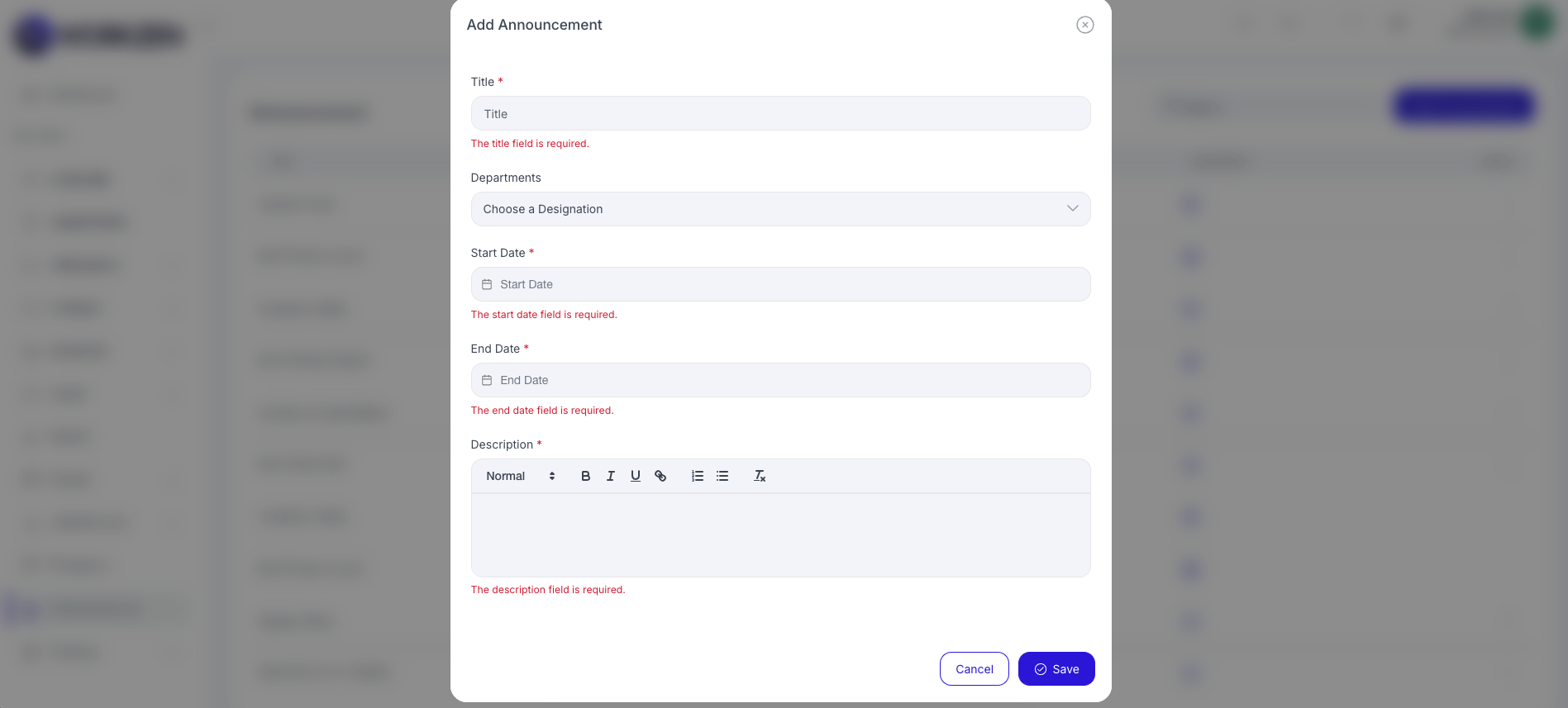
Create a new announcement.
Email & Templates
Connect outbound email and customize templates used by invitations, payroll, and system messages.
Email configuration
Provide SMTP or provider settings so WorkZen can send mail reliably.
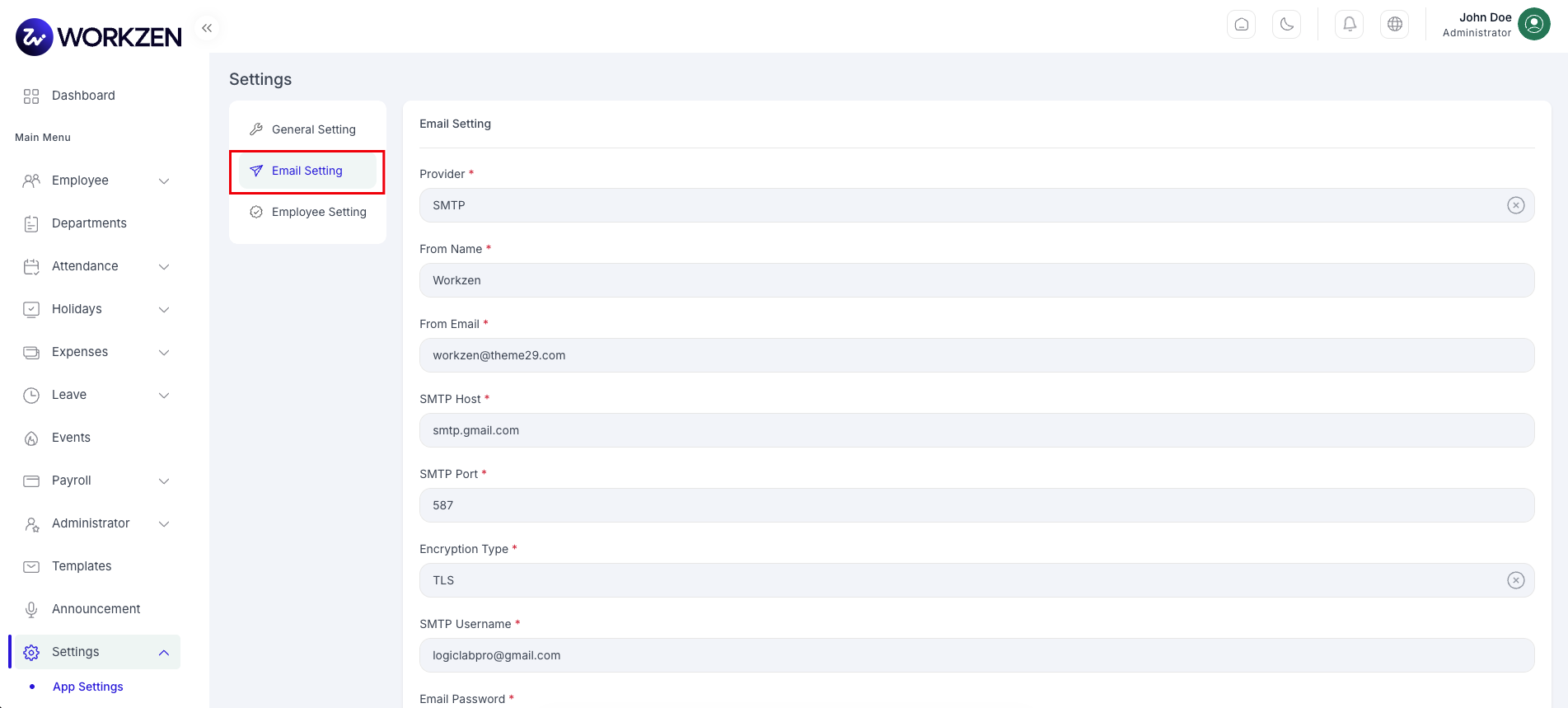
Email (SMTP) settings.
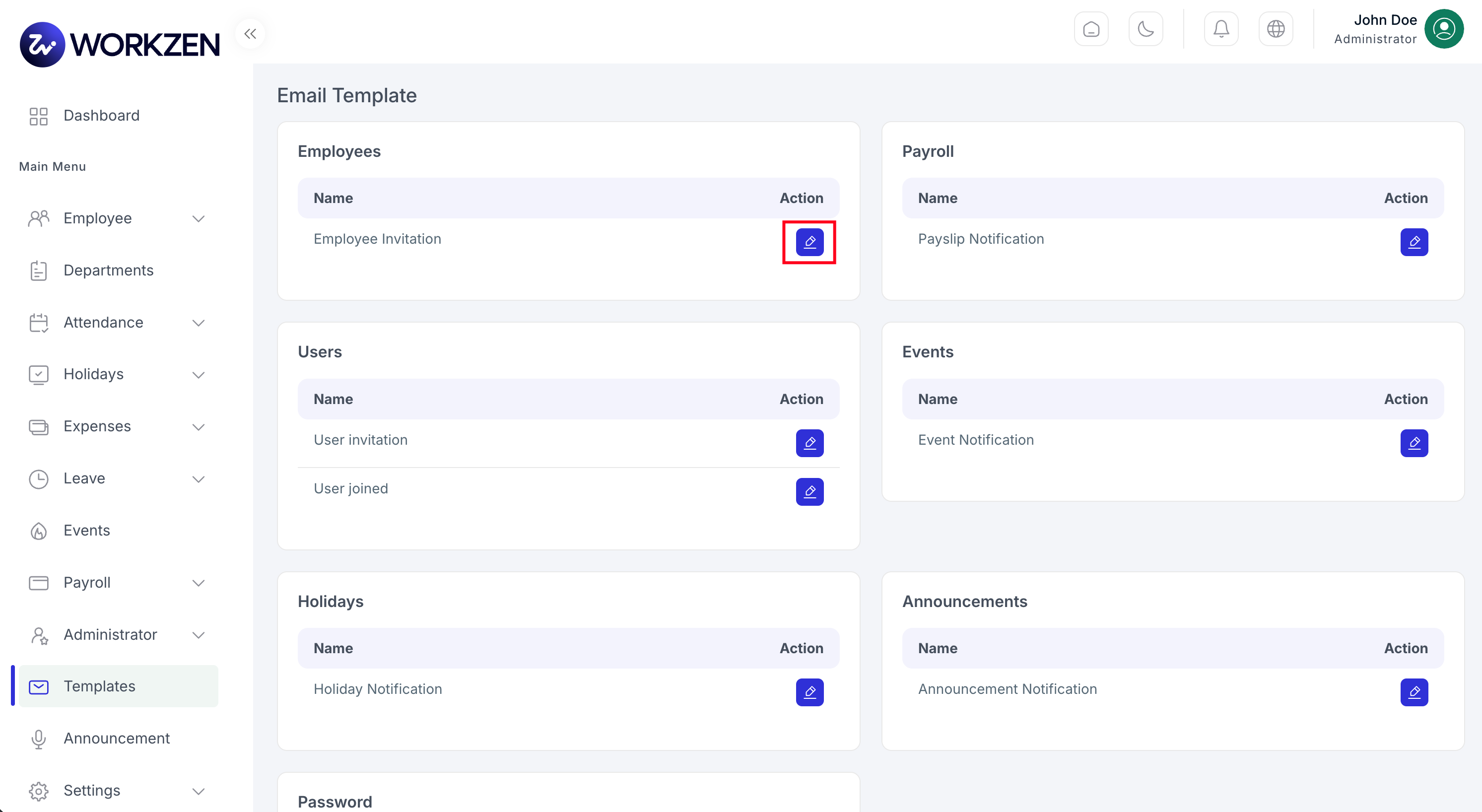
Email templates overview.
Edit a template
Adjust subject and body placeholders per template type.
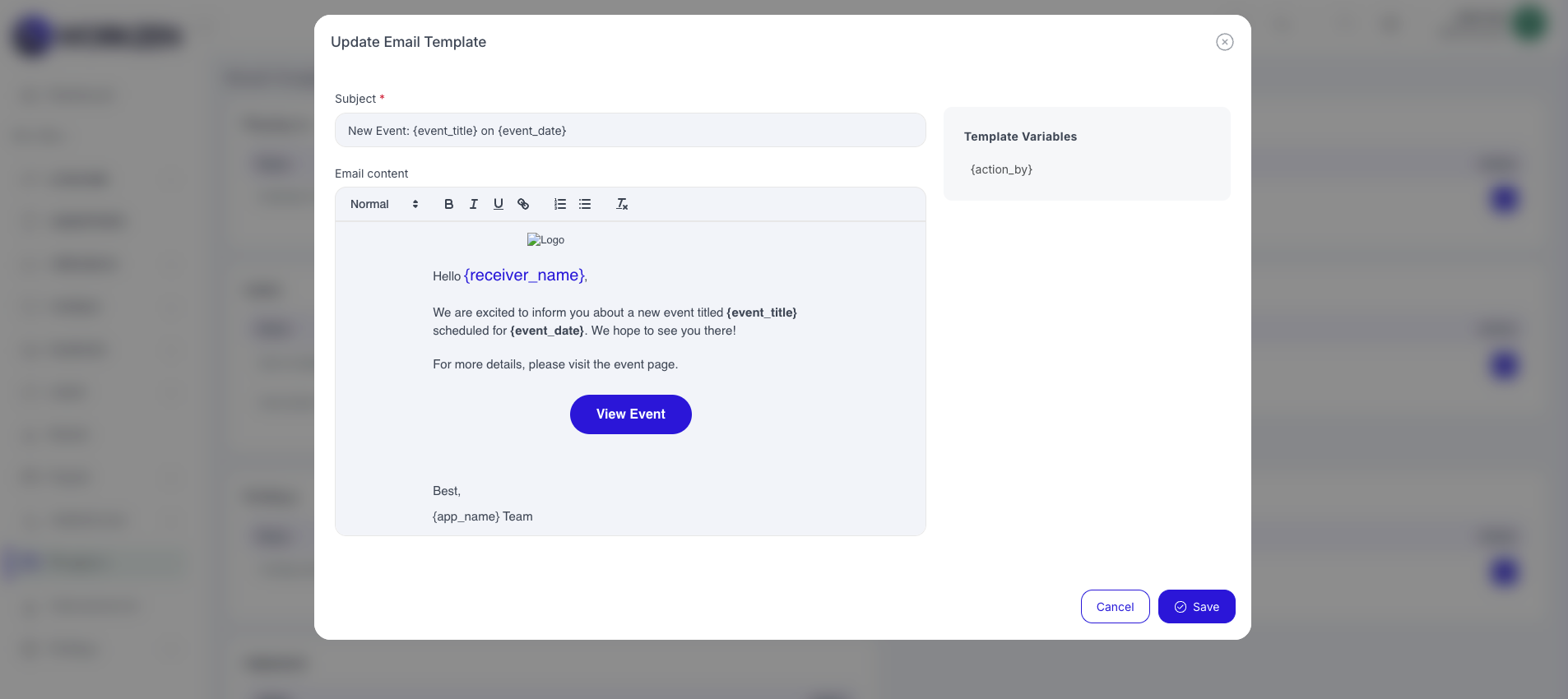
Update an email template.
Settings
In the web app, Settings uses the same order as below. Use this chapter for every module-specific policy screen (not scattered across other sections).
App Settings
Company-wide preferences in the admin (locale, branding, and other global options depending on your build).
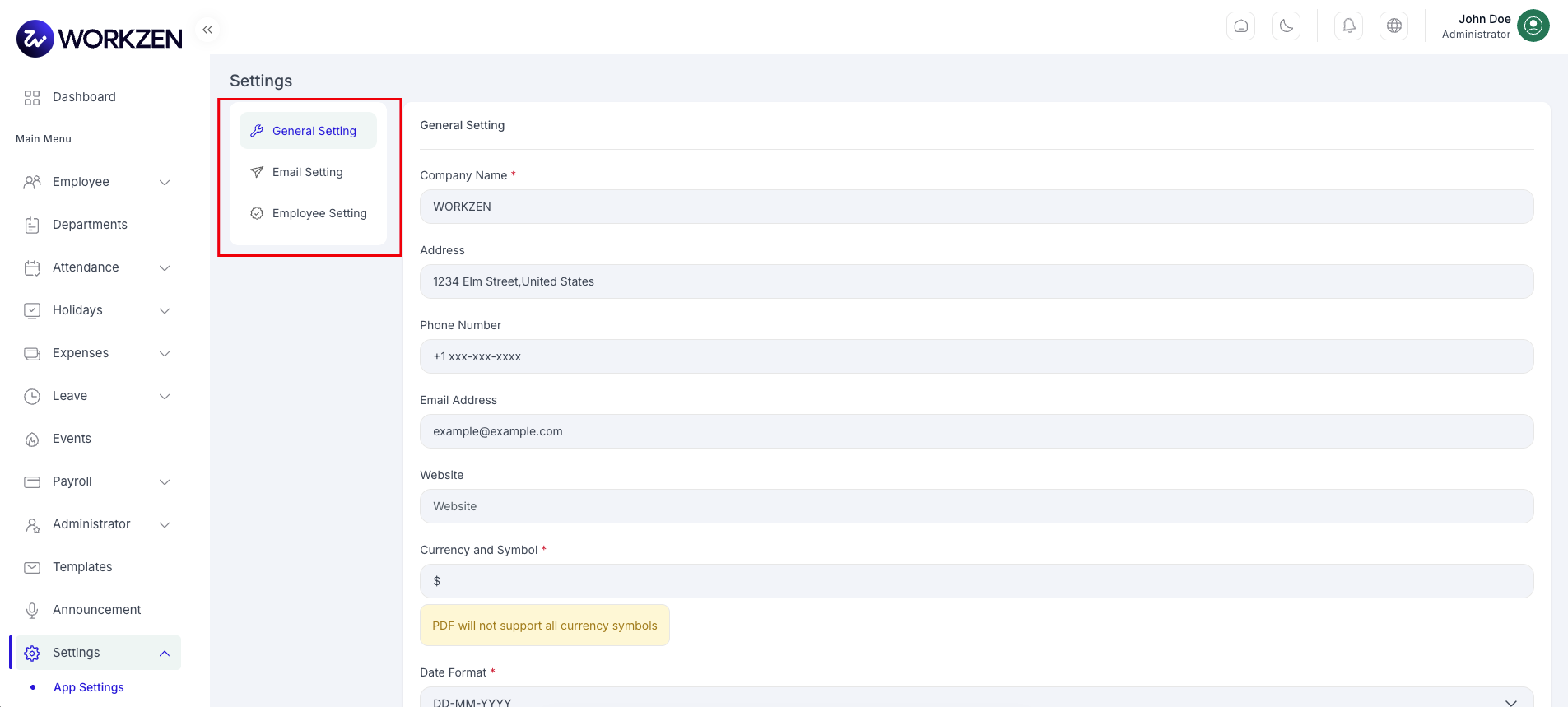
App settings in the web application.
Server-side deployment options (URLs, mail transport, queues, caching) are not shown here—they are
usually set in .env and Laravel config/ when you install or migrate.
Web admin tips
- Configure organization (departments, designations, shifts) before starting payroll.
- Validate email settings early so invitations and payslip delivery succeed.
- Align attendance definitions with shifts and breaks to reduce manual corrections.
Leave Settings
Policies and defaults for how leave operates in your organization.
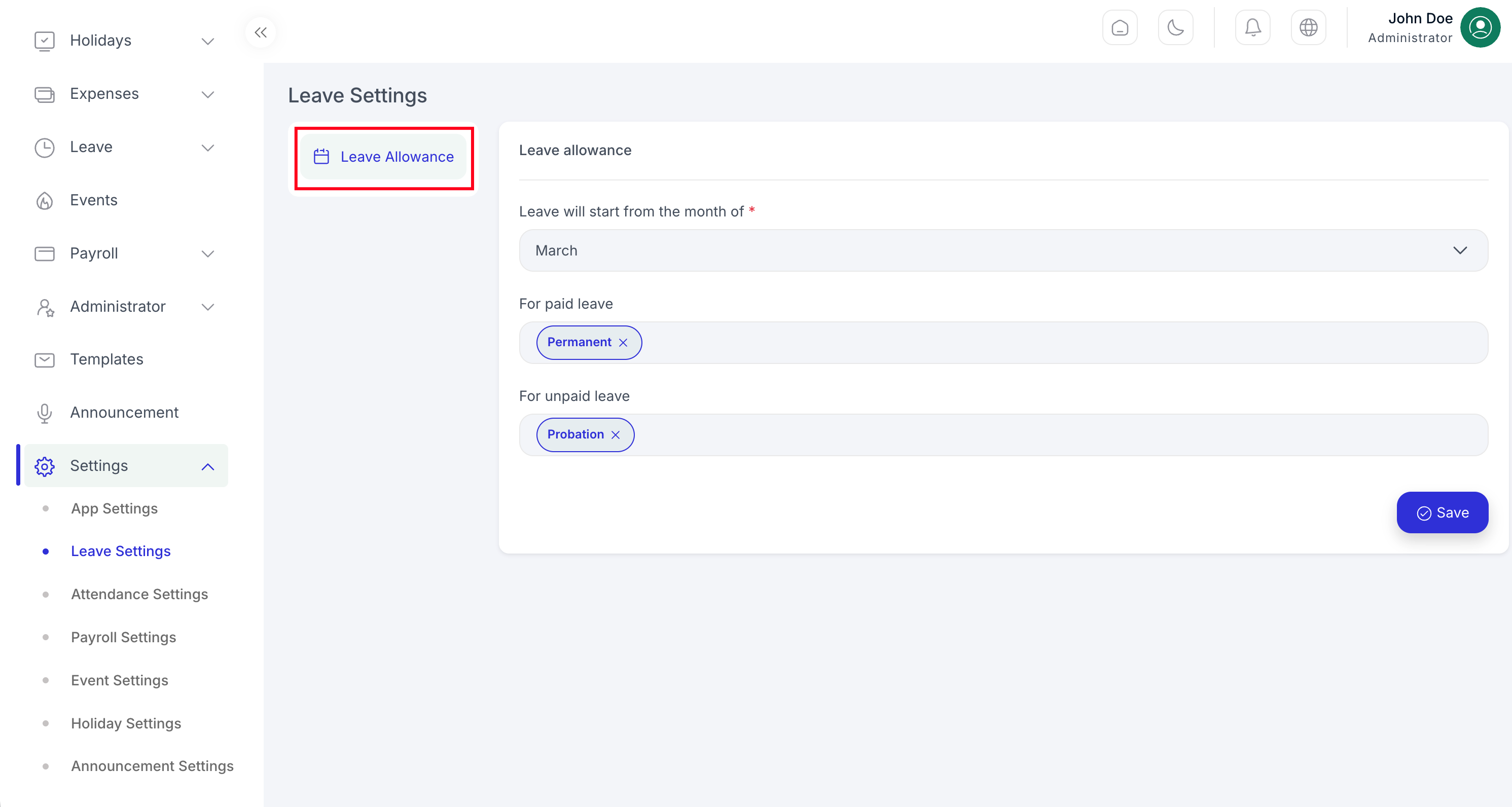
Leave module settings.
Attendance Settings
Define workdays, grace times, calculation rules, and optional IP restrictions for clock-in.
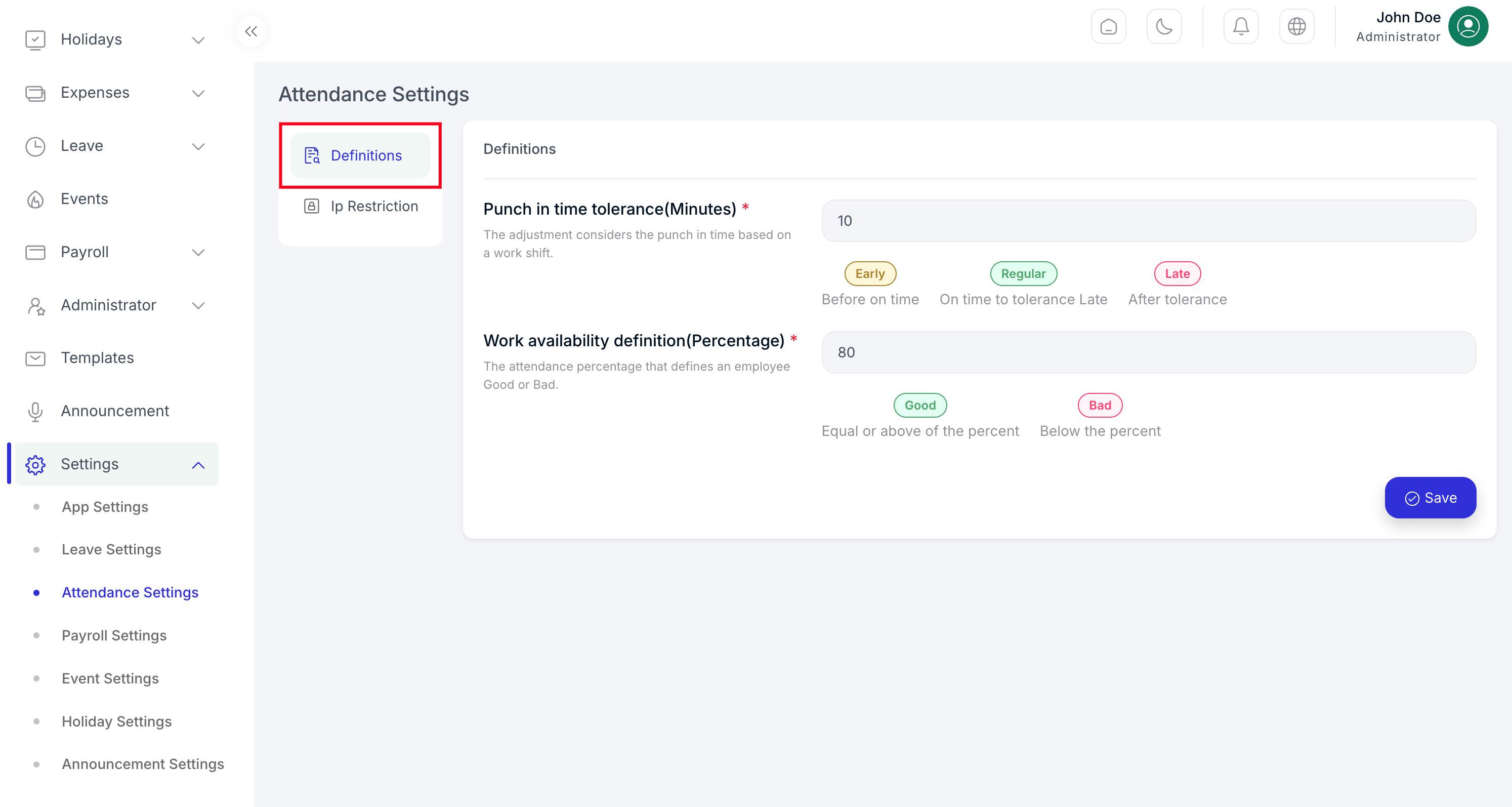
Attendance definition and calculation settings.
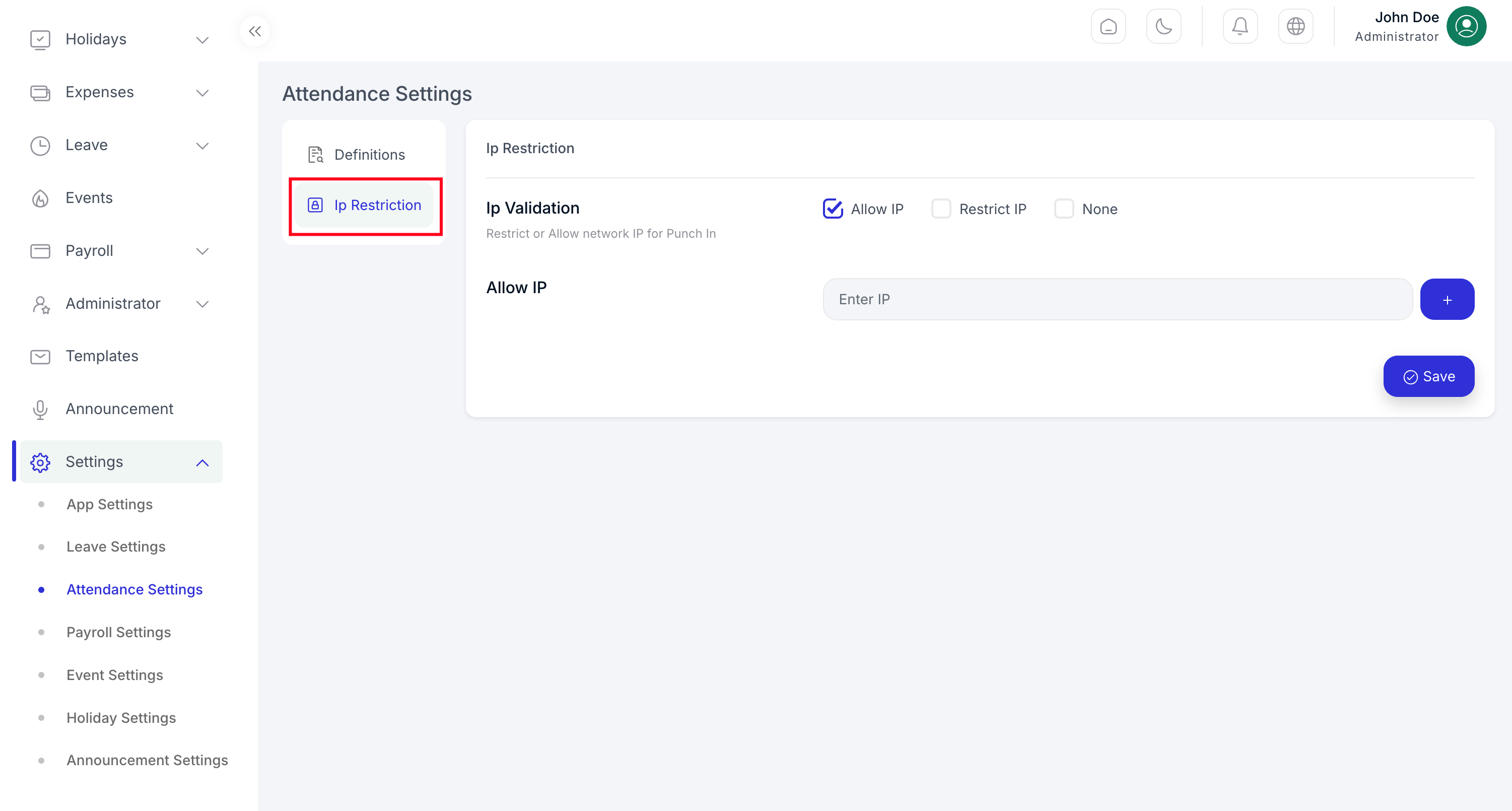
IP restriction for attendance actions.
Payroll Settings
Control payroll badges and which audiences can see payroll-related information.
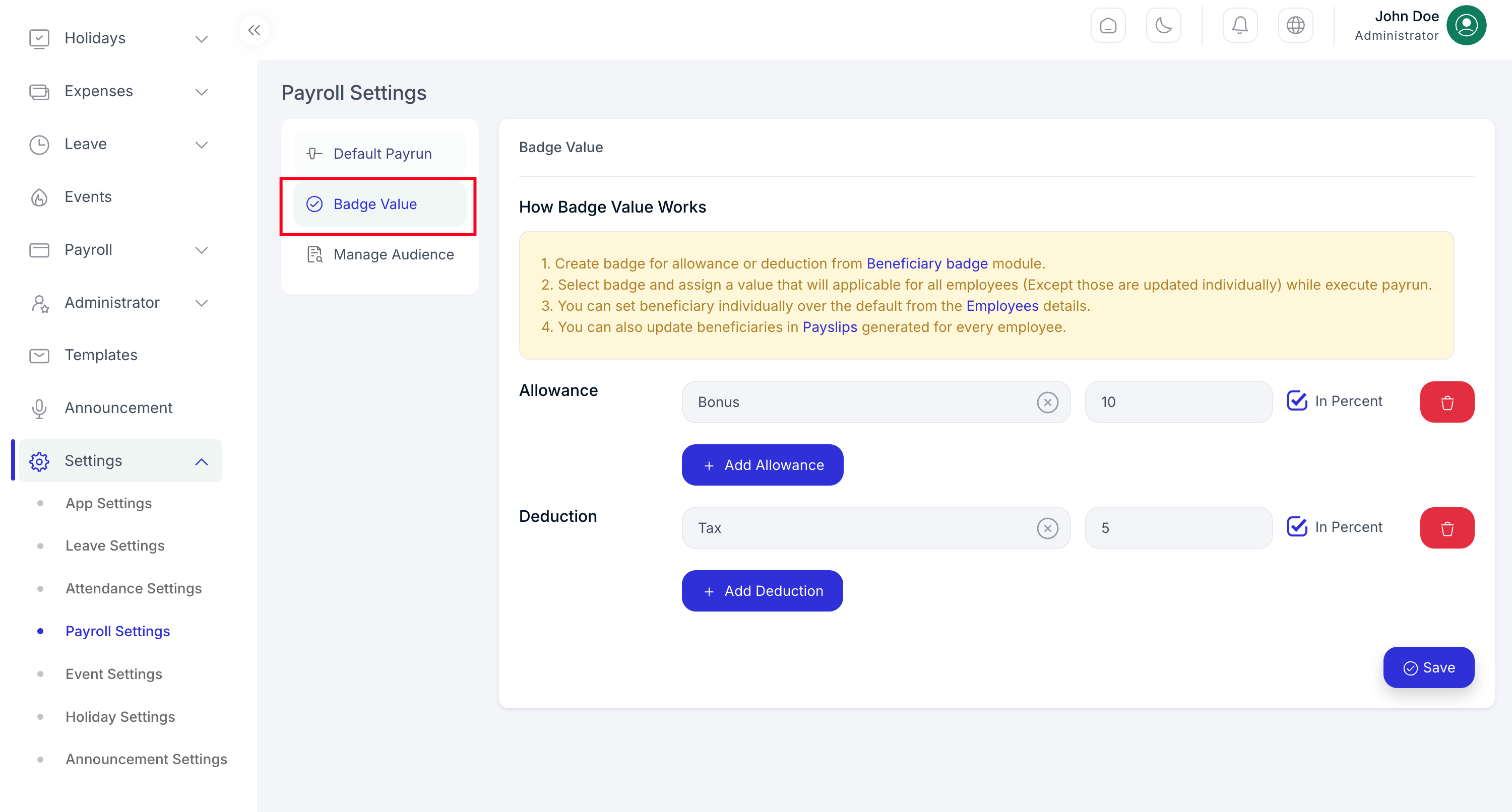
Payroll badge settings.
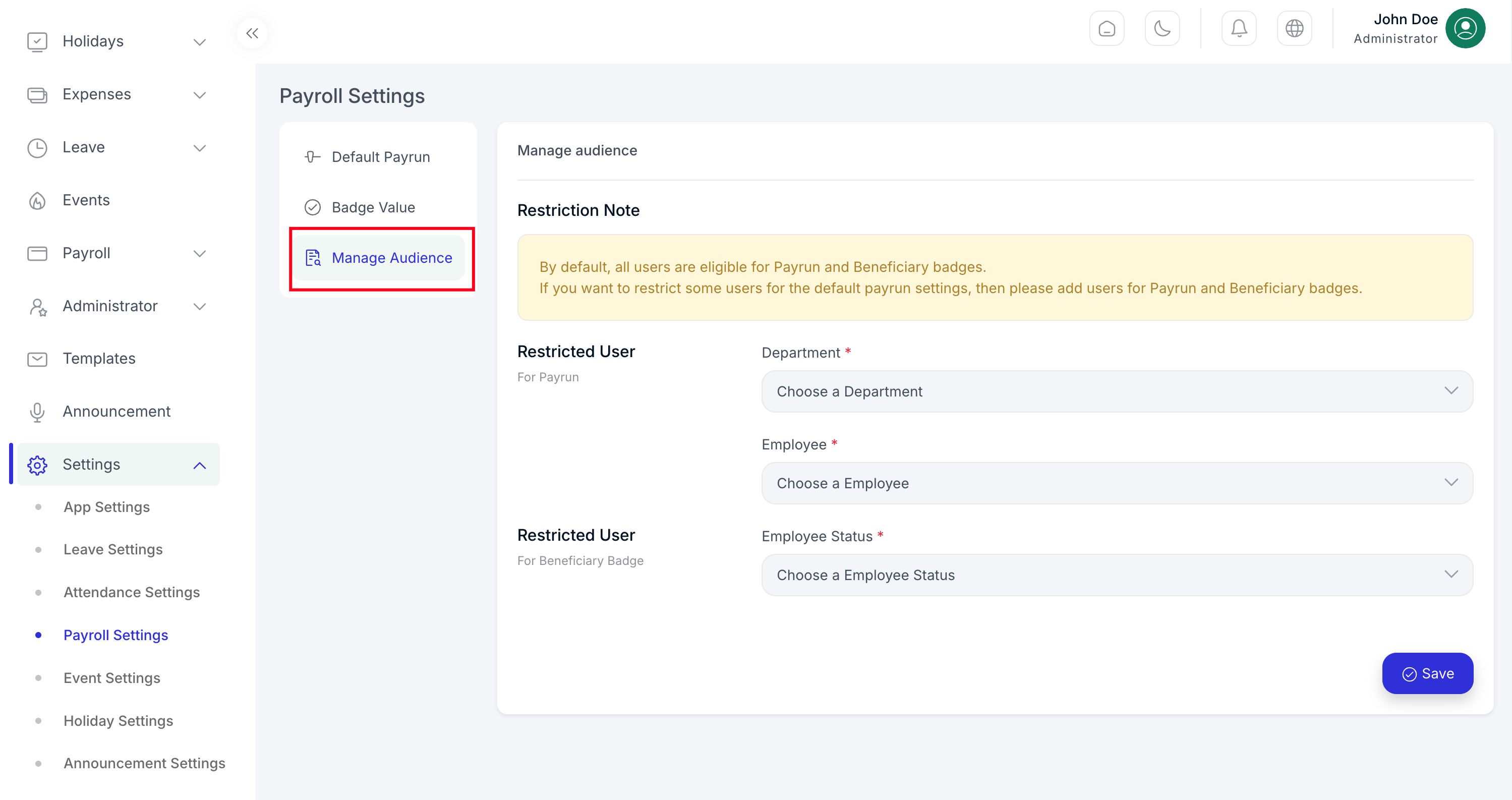
Manage payroll audience visibility.
The screenshot filename uses the spelling auience; the UI label
in your build may read “audience.”
Event Settings
Options for the company events module.
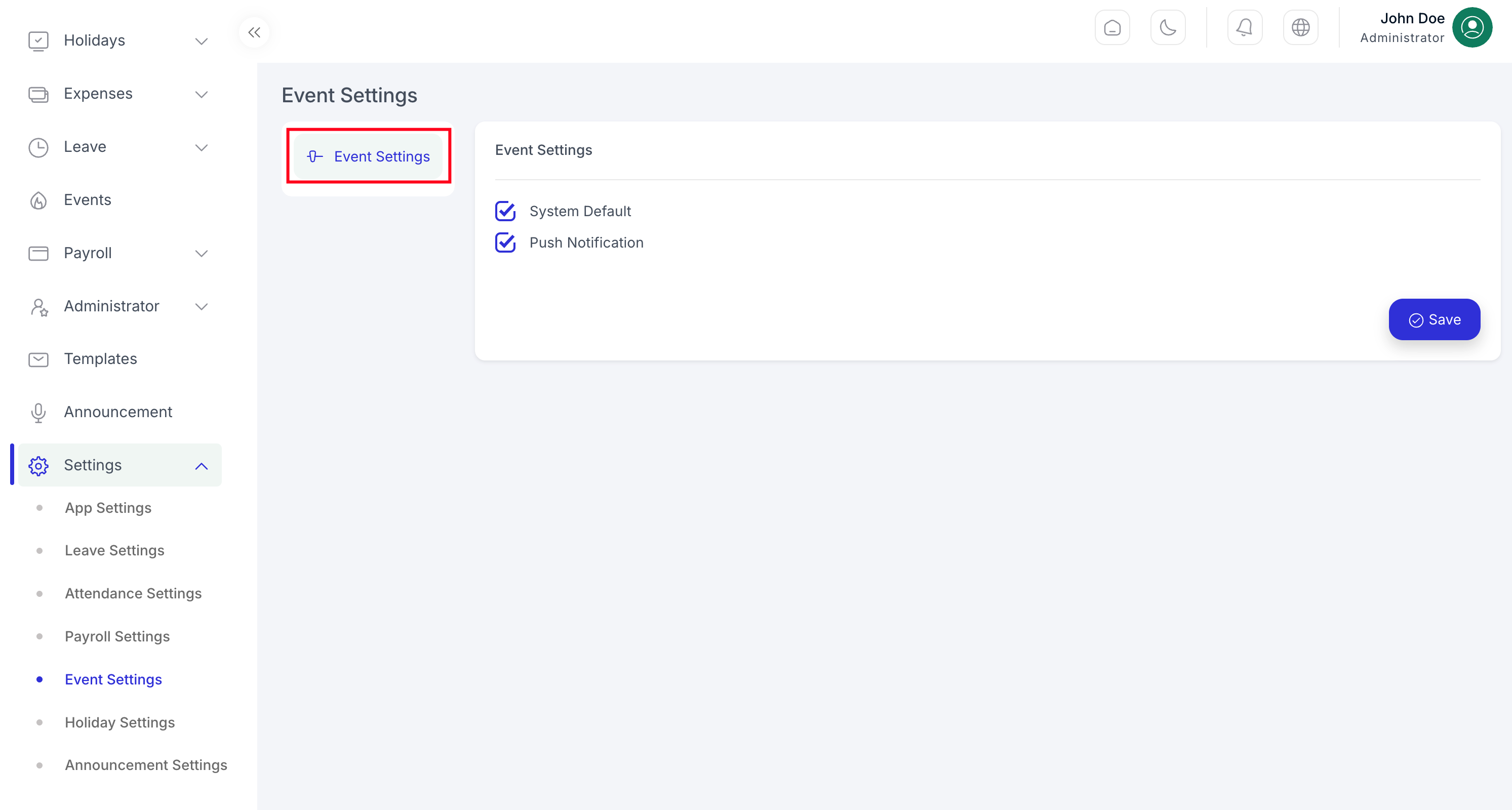
Event module settings.
Holiday Settings
Configure how holidays interact with attendance and leave.
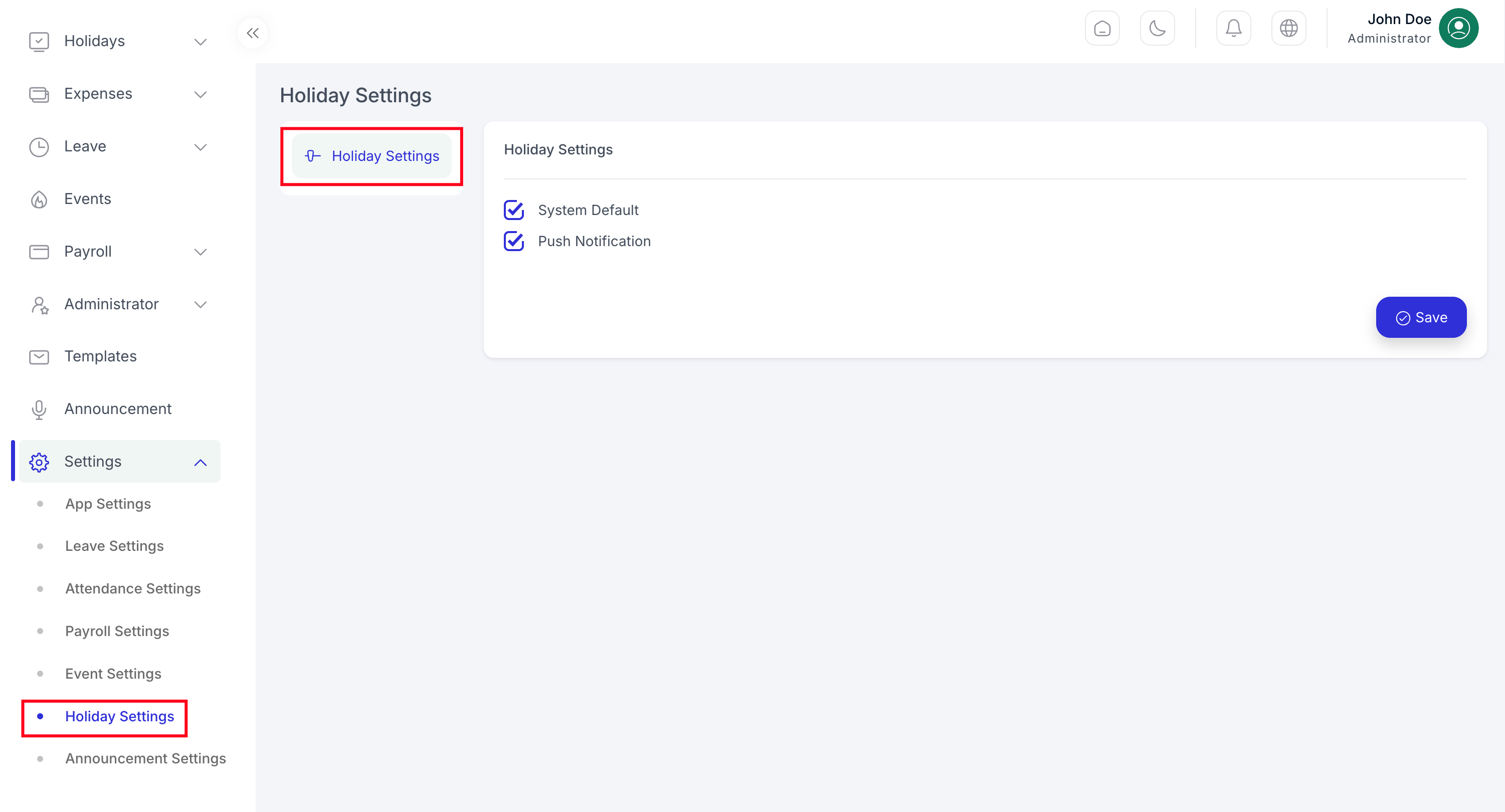
Holiday settings.
Announcement Settings
Defaults for posting and visibility of announcements.
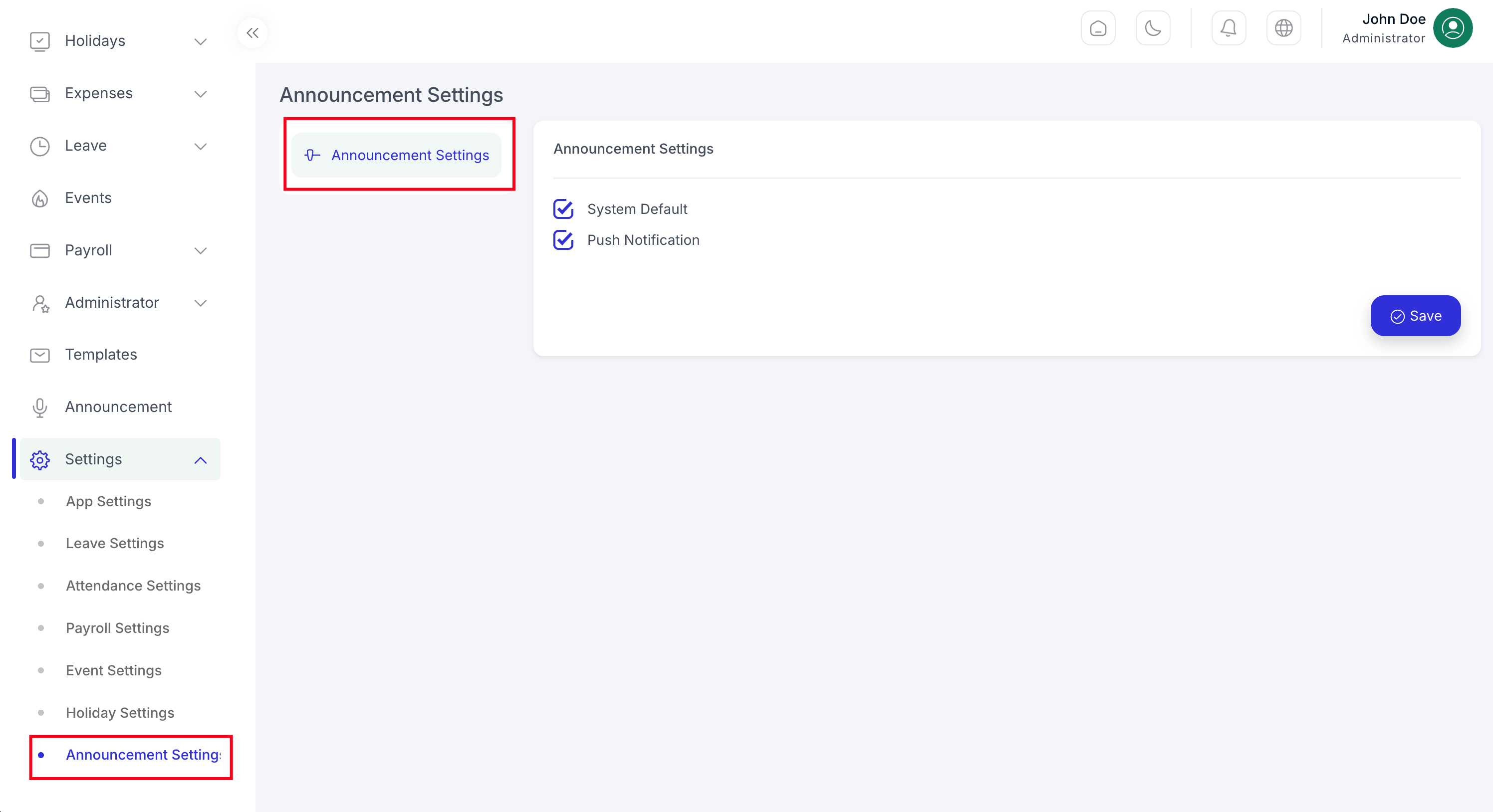
Announcement settings.
Cronjob Settings
These are not a screen in the web UI—they are server tasks. Scheduled commands are defined in
routes/console.php under your project root (for example
/Users/abid/dev/hrm/routes/console.php in a local checkout). Add a cron entry so Laravel’s
scheduler runs every minute (adjust the project path):
* * * * * cd /path/to/your/project && php artisan schedule:run >> /dev/null 2>&1Entries in routes/console.php include:
queue:work --queue=high-priority,high,default --memory=512 --tries=3 --timeout=600 --stop-when-empty— every minute (withoutOverlapping)app:subscriber-expire-reminder— daily at 00:01 (withoutOverlapping)app:subscriber-expire— daily at 00:01 (withoutOverlapping)leaves:assign— every minute (withoutOverlapping)
Use this guide alongside the mobile app documentation for employees who primarily use phones.
- Complete org and role setup on web for a clean rollout
- Share leave and attendance policies through announcements
- See the Mobile App User Guide
- Android Installation Guide and iOS Installation Guide for developers
- Contact support:
[email protected]